


Whether you are a professional writer or a teacher. It may happen that you want the line or word in your content to get noticed but at the same time, you also want the reader to not consider that part. It may also happen that you want to ignore some aspects of the document while in mind you have used that aspect later. You can use the Strikethrough feature in Google Docs to delete specific text while leaving that text visible to the reader so that readers can compare. It is a commonly used feature in Google Docs.
If you have not used this feature till now, you are missing some great virtues of this tool. In this article, I will show you how to strikethrough in google docs easily.
How to Strikethrough Text in google docs
Now you already know what Strikethrough text is and why it is used. If you are a Google Docs user, you can easily Strikethrough text in Google Docs. So, without wasting any time, follow the instructions below to make the most of this useful tool in Google Docs.
- Open a word document and locate the line containing the word to strikethrough
- Select and highlight the text you want to Strikethrough.
- Click on the “Format” option that appears in the title
- Now, click the “Text” option
- Click on the Strikethrough button
Strikethrough Text in google docs shortcut keys:
Strikethrough text in google docs can be done in a more efficient way by using Keyboard shortcuts. For Mac:
- Mac book:
- Highlight the word or phrase you want to draw a line through and press Command + Shift + X. (⌘ + Shift + X)
- Windows and Linux:
- Select the word or phrase you want to strikethrough and press Alt + Shift + 5
Step-by-step Tutorial: Strikethrough Google Docs in PC or browser
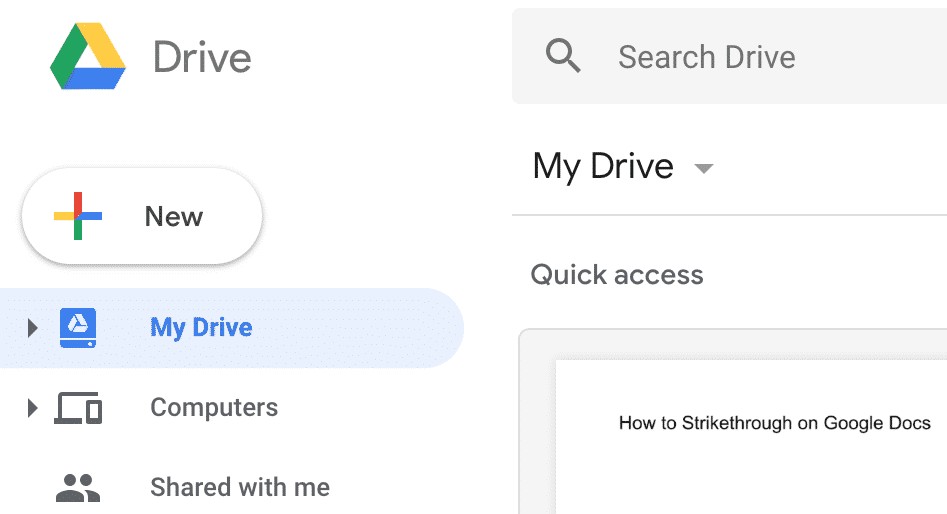
1. Sign in to your Google drive:
First login to your Google Drive and head to the Google Docs has the text you want to want to draw a line through.
Related Post: How to Check Chrome Version Quickly
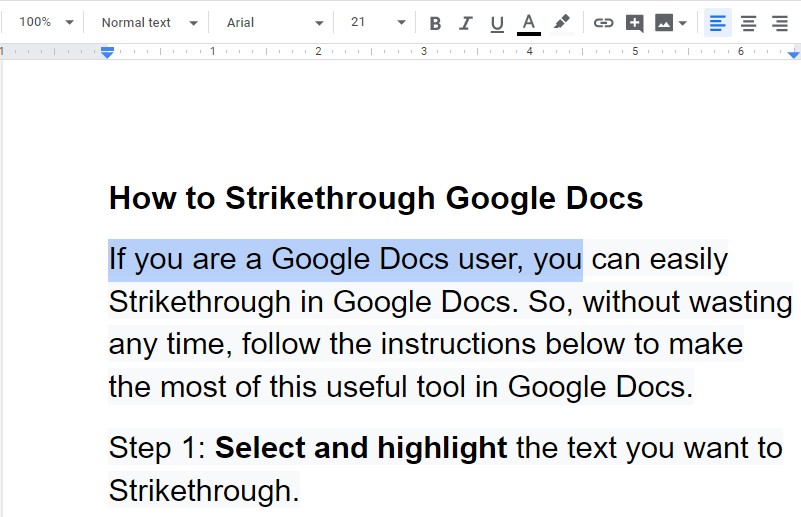
2. Select and Highlight the text
Select the text that you want to draw a line through and drag the pointer over the text to highlight.
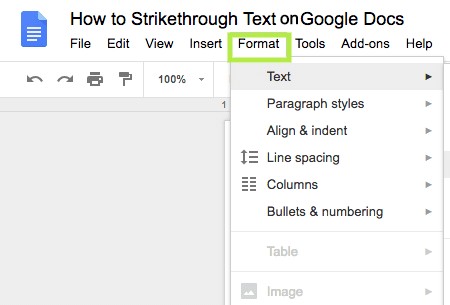
3. Tap “Format” in the toolbar
Next, move your cursor to the Format section that appears at the top of the toolbar and click on it.
Related Post: How to create a Gmail account without a Phone Number
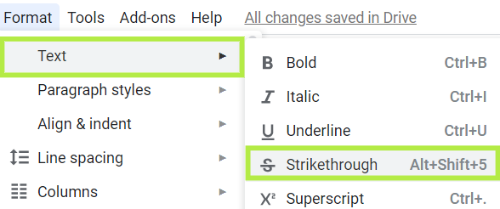
4. Tap the “Text” button and choose “Strikethrough”
You will see a drop-down menu after you click on the format option, hover your cursor on the “Text” option. A new side menu will appear, from here, select the Strikethrough button.
How to strikethrough in Google docs App:
The strike-through feature in Google Docs App is independent of whether you are using an iOS or an Android device. However, the Google Docs app versions for tablets and for mobile phones differ a lot. The tablet version is quite simple and intuitive as compared to the desktop version, while the mobile version is not as simpler as the tablet and desktop versions. As the display screen for mobile is small, that justifies the absence of visibility of all the commands on the main screen. However, the Google Doc app is the most optimized writing tool available for mobile phones.
Strikethrough text in Google Docs App in Mobile:
If you are using Google Docs app on your mobile phone, then here you will find what to do to strikethrough text in the google Docs App on Mobile:
- Open the app
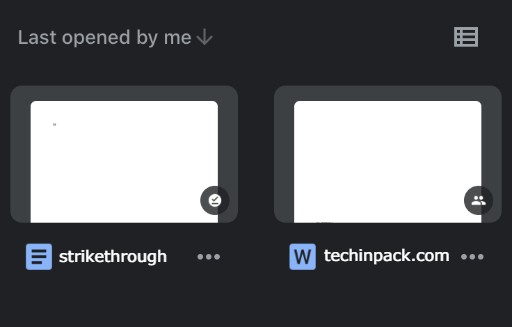
2. Head to the document you want to open
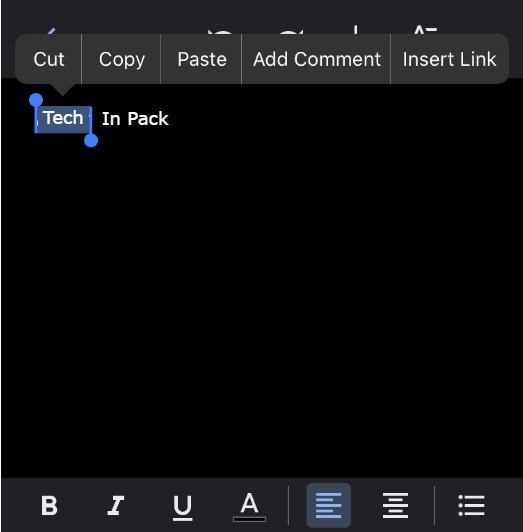
3. Select the text or word you want to strikethrough
4. In the right corner Tap on the Format Icon that looks like a letter A.
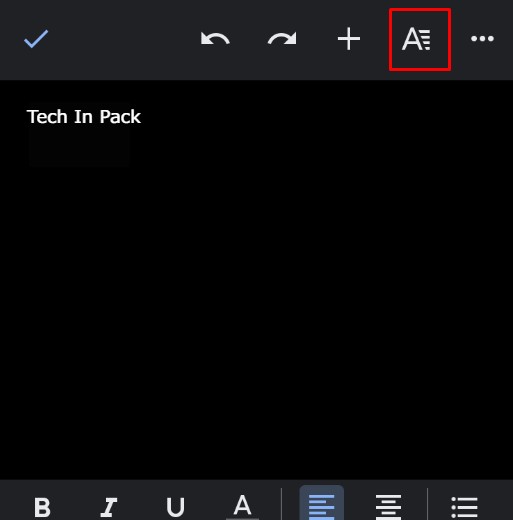
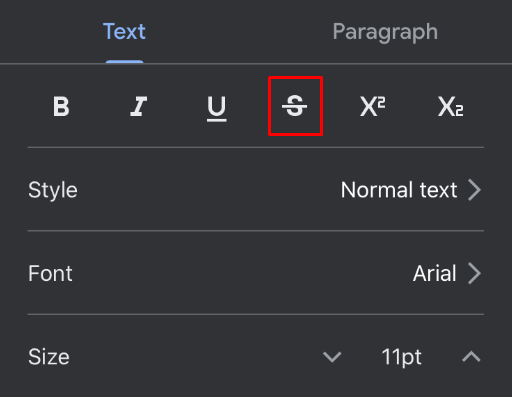
5. Now you can see the strike-through icon appears like a letter S with a line in between.
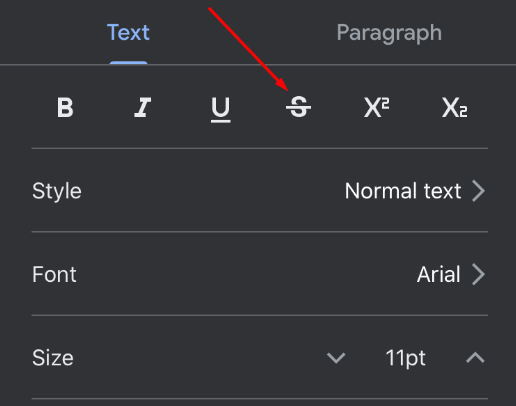
6. Now tap on it to strikethrough the text or word you have selected.
Strikethrough text in Google Docs App on Tablet:
Tablet and mobile versions of the Google Docs App are different, if you use the google docs app on your tablet then follow these simple steps to strikethrough text in google docs:
- Download and open the App
2. Head to the document you want to edit.
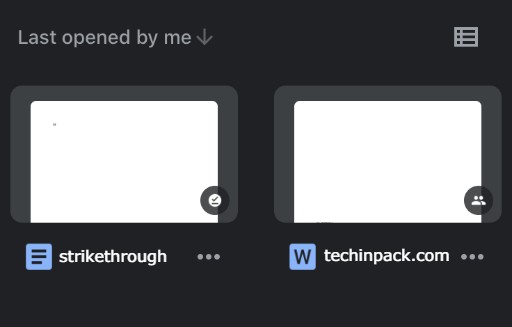
3. Select the text or word you want to edit.
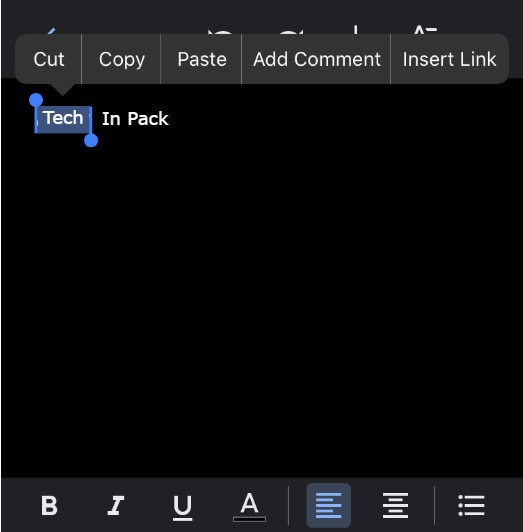
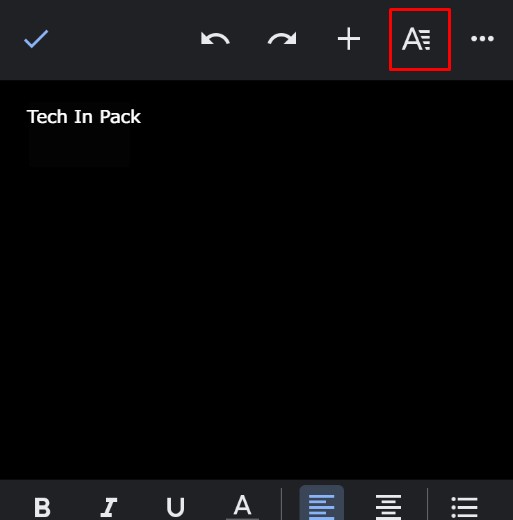
4. In the right corner Tap on the Format Icon that looks like a letter A.
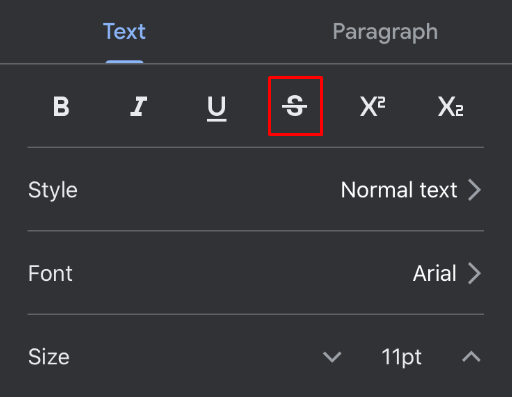
5. Now tap on the icon S to strikethrough the text or word you have selected.
How to undo Strikethrough Google Docs:
For any reason, if you want to remove the line drawn through text in your documents, you can undo this using 3 tricks.
- You can undo the line drawn through the text just after you placed it simply by pressing Ctrl + z.
- If you want to remove Strikethrough text from the already created Document just use the same keyboard shortcut you have used while striking through your text that is, Alt + Shift + 5 (Windows) or Command + Shift + X (Mac).
- You can also clear formatting by using the keyboard shortcut. For this, highlight the text and press :
- Windows: Ctrl + \
- Mac: Command + \
Note: Clear formatting will not only remove lines through text it will also remove all the additional formatting (like italic, Bold, etc) you have placed in your document.
Final words
While editing your documents, let the best of you come out in words as now you know How to strikethrough on Google Docs. Now you can keep the text for later use without having the need to delete them.
FAQs:
1. Can Strike through line be of a different color than text?
2. How to undo Strikethrough in Google Docs?
3. Why use Strikethrough In Google Docs?
If you are a blogger you can use it to add some humor or to indicate a change in thought.
Or simply to save that text for future use.

1 Comment
I wanted to thank you yet again for your amazing web page you
have made here. It can be full of useful tips for those who
are really interested in this kind of subject, especially this very post.
You’re really all so sweet as well as thoughtful of others and also reading your site posts
is a great delight in my experience. And such a generous gift!
Mary and I are going to have pleasure making use of your ideas in what we have to do in a
few weeks. Our listing is a mile long which means your tips are going
to be put to very good use.