Close Menu
Tech In Pack
  • Business
  • Digital Marketing
  • How to
  • Tech Updates
  • Trends

Subscribe to Updates

Subscribe to get tips, tricks, news related to Gadgets, social media platforms and much more.

What's Hot

How Data-Driven Decisions Are Shaping Amazon PPC Campaigns

Apr 29, 2026

Latest Breakthroughs in Quantum Computing 2024: A Simple and Detailed Guide

Apr 26, 2026

Why Creative Writing is Essential for Primary School Children

Mar 26, 2026
Facebook X (Twitter) Instagram
Tech In Pack
Contact Login
  • Business
  • Digital Marketing
  • How to
  • Tech Updates
  • Trends
Tech In Pack
  • Home
  • How to
  • Trends
  • Tech Updates
Home»How to»Productivity»How To Reopen Closed Tab in Chrome (Easy or Quick Ways)
Productivity

How To Reopen Closed Tab in Chrome (Easy or Quick Ways)

Usama SarfrazBy Usama SarfrazJul 29, 2020Updated:Dec 31, 20224 Comments3 Mins Read
Facebook Twitter Pinterest LinkedIn Tumblr WhatsApp VKontakte Email
How to reopen closed tab
How to reopen closed tab; Three best ways.
Share
Facebook Twitter LinkedIn Pinterest Email

Like other modern web browsers, Chrome allows you to reopen recently closed tabs and windows. It might happen that you accidentally close a tab in the Google Chrome browser and the page you are using is lost. In older versions of Google Chrome, you could just right-click anywhere in the above-mentioned tab pane, even on the currently open tab, and choose to reopen the closed tab. Google slightly changed this option and decided to move this key functionality in the new software update for Google Chrome. However, it is very easy to find how to reopen a closed tab in Google chrome. You can easily reopen the closed tab, closed either accidentally or on purpose. You can also restore closed tabs which you viewed some days ago. There are multiple ways to restore recently closed tabs. Here in this article, we will see how to reopen a closed tab.

How to recover closed tabs : 3 methods.

1. How to restore Google Chrome tabs (recently closed):

You can reopen closed tab on chrome easily with just one or two clicks. follow these steps to restore google chrome tabs.

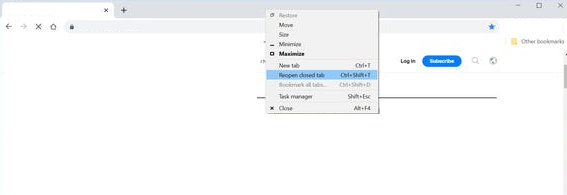
  1. Right-click anywhere in the empty space, on the tab strip, at the top of the window.
  2. Now, select “Reopen closed tab”.

OR

You can also use a keyboard shortcut to restore the closed tab: Press CTRL + Shift + T on a computer or Command + Shift + T if you are using Mac.

Related Post: How to Flip And Rotate an image in Google Docs.

2. Reopen your closed tab when Chrome is synced.

You can also restore chrome tabs in this way. If you sync your Chrome with all the devices you are using, then you can easily see recently closed tabs all the devices you are using associated with your account.

1. Tap on the three dots icon appears at the top right of your browser’s screen.

2. Tap on History, in the menu.
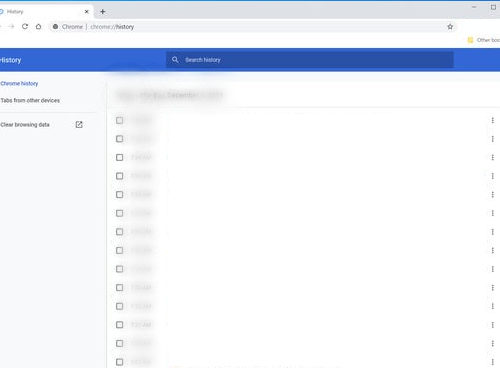
3. Now a list will appear having most recent tabs used by each device

4. Now, select the tabs you want to reopen.

Related Post: How to Recover Data after Factory Reset.

3. Restore a closed tab from history.

There is another way you can restore closed tabs, closed recently by checking browser history. Follow these steps to know how to recover closed tabs.

1. First, tap on the three dots icon appears at the top right of the browser window.

2.Click “History” from the menu
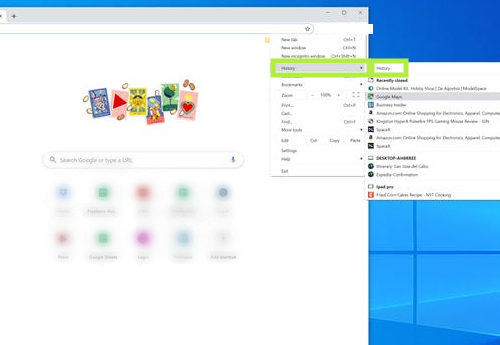
how to reopen closed tab

3. Then click “History” in the sub menu.

4. Now, locate the tab you want to open and tap on it.

Related Post: How to change default google account.

However, these options are not applicable to the incognito mode in Chrome and not allow you to reopen windows and tabs. As in incognito mode Chrome forgets these tabs once they are closed. I hope now you have an idea of how to reopen closed tab or how to restore chrome tabs. If you face any difficulty in doing so, let us know in the comment section below.

How to reopen a closed tab: From history How to reopen a closed tab: when Chrome is synced How to reopen closed tab How to restore Google Chrome tabs (recently closed)
Share. Facebook Twitter Pinterest LinkedIn Tumblr WhatsApp Email
Previous ArticleBest VPN Google Chrome Extensions of 2022
Next Article How To Hide Taskbar In Windows 10 & Older (Quick Guide)
Usama Sarfraz

Usama Sarfaraz is a technology writer with a passion for exploring the latest social media platforms and sharing hacks and tricks to help readers make the most of technology. With years of experience in the tech industry, Usama has developed a keen eye for emerging trends and an in-depth understanding of how technology is shaping our world. As a writer, Usama brings a fresh and engaging perspective to his articles, making complex topics accessible to readers of all levels. He specializes in how-to guides for popular social media platforms such as Facebook, Twitter, Instagram, and TikTok, as well as providing insights into the latest software and apps. Whether you're a social media newbie or a tech-savvy user looking to stay up-to-date with the latest trends, Usama's writing is sure to provide you with the knowledge and insights you need. So, if you're looking to unlock the full potential of your technology and stay ahead of the curve, be sure to check out Usama's latest articles and guides.

Related Posts

Books That Change Your Perspective on the World

Apr 16, 2025

The Essential Habit: Regular Physical Exercise

Mar 26, 2024

How To Unlock The Potential Of Online Learning

Oct 30, 2023

Fix Windows 10 WiFi Keeps Disconnecting [SOLVED 2023]

Apr 11, 2023
Leave A Reply Cancel Reply

You May Like

Elevate Website Security with Primasecure.com’s SSL Certificates

Sep 21, 2023

Best Website Creation Service – Which Should You Choose?

Feb 5, 2024

The Spark Shop Men Winter Jacket Sportswear Gym Fitness: A Blend of Comfort and Functionality

Dec 23, 2024

Techfelts: Your Ultimate Destination for Digital Recovery Solutions

Feb 7, 2024
Advertisement
About Us

Get some tech updates, tech hacks, reviews, and buying guides for tech products, services, and applications.

Contact: worldmusti@gmail.com

Our Picks

How Data-Driven Decisions Are Shaping Amazon PPC Campaigns

Apr 29, 2026

Latest Breakthroughs in Quantum Computing 2024: A Simple and Detailed Guide

Apr 26, 2026

Why Creative Writing is Essential for Primary School Children

Mar 26, 2026
Popular

Top 5 Best Android Phone Locator Apps

May 31, 2020

8 WAYS TO BOOST ANDROID MOBILE’S SPEED

Jun 2, 2020

iOS 13.5.1: Apple’s update to prevent jailbreak by unc0ver

Jun 4, 2020
Facebook X (Twitter) Instagram Pinterest
  • Home
  • How to
  • Contact Us
© 2026 ThemeSphere. Designed by ThemeSphere.

Type above and press Enter to search. Press Esc to cancel.

Go to mobile version

Sign In or Register

Welcome Back!

Login to your account below.

Lost password?