

Each bit of your screen is valuable and it is precious if you are using a modest or small display screen or resolution on your Laptop, Monitor, or even a tablet. But if you are a windows user you can see a large taskbar take up the space located at the bottom, even when it is not very much needed. However, the Taskbar is a very useful and most useful feature of the Windows operating system as it allows you to quickly launch your favorite apps with a single click. It also allows you to see Wi-Fi connections, volume control, and the amount of battery left in your device. This great feature is of any use to most people but on the other hand, it is quite annoying for some people. Whether you find the Windows 10 taskbar unwanted or simply find it taking up a lot of screens, whatever the reason may be, you can easily hide the taskbar in Windows 10 and older versions when it is not in use. But sometimes, it can stubbornly refuse to hide when it is supposed to do so based on the settings you made. Here, in this article, we will show you how to hide the taskbar in windows 10 and older ones. Whether you are using desktop or tablet devices below mentioned methods are applicable for both. You can also easily undo this action if you change your plan in the future. This works for both desktop and tablet devices, and the method is exactly the same.
Disable Notifications To hide Taskbar
If there are certain programs that flash on the taskbar, it won’t close. First, you have to disable the notifications of these programs.

- Icons in the system tray (in the lower right corner of the screen) may also keep the taskbar open when trying to notify you. Check icons in your system tray.
- Disable the notifications for programs in the system tray.
- If you are using Windows 8, 7, and Vista then tap on the expansion arrow appears next to System Tray Icons then tap on Customize. Now find the app you want to disable notifications for and select “Hide icon and notifications”.
- If you are using Windows 10:
- Head to the Start menu then select “Settings”.
- Now, select “System” then tap on Notifications and Actions.
- Now, turn off notifications for specific apps or all at once.
- You can also Reset Windows Explorer as resetting it can fix your problem.
- Right-click on the taskbar while pressing and holding Ctrl + Shift buttons.
- Now, tap on “Exit Explorer” from the bottom of the menu. Once, you are done selecting Exit Explorer the taskbar and all icons will disappear.
- Then, press and hold Ctrl + Shift + Esc in order to open Task Manager.
- Now, tap on “File” then tap on “Run a new task.”
- Finally, type “explorer” and press Enter to reload the explorer.

How to hide taskbar in Windows 10
Follow these easy steps to make your taskbar hidden in Windows 10.
1. First, right-click in an empty place on the Windows 10 taskbar to bring up the popup menu.
2. Now, click Taskbar Settings appears at the bottom of the options menu.

3. Now enable the “Hide taskbar automatically in desktop mode” by clicking on the small lever that turns to the right of the blue option. If the computer also supports tablet mode, enable “Automatically hide the taskbar in tablet mode”.
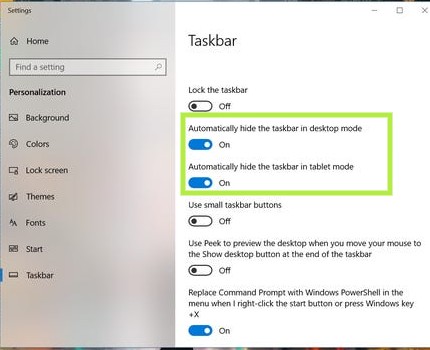
4. Once you are done enabling the hide Taskbar option, now the taskbar should disappear automatically.
5. Now tap on the cross (X) icon appears at the top right to save the changes you made. You can also re-enable your taskbar simply undo these steps.
6. Whenever you move your cursor to the bottom of your screen taskbar will popup. When you move away from your cursor from the bottom of the screen it will disappear again.
7. If you are using a tablet, swipe up from the bottom of the screen to bring the taskbar.
Related post: Windows 10 wifi keeps disconnecting: What to do!
Hide taskbar in Windows 8 and older versions.
Follow these easy steps to know how to hide taskbar in Windows 8 and older versions:
1.First, right-click on the Windows taskbar and tap on “Properties.”

2.Now, tick the box that shows the “Automatically hide taskbar” box appears on the taskbar menu windows.
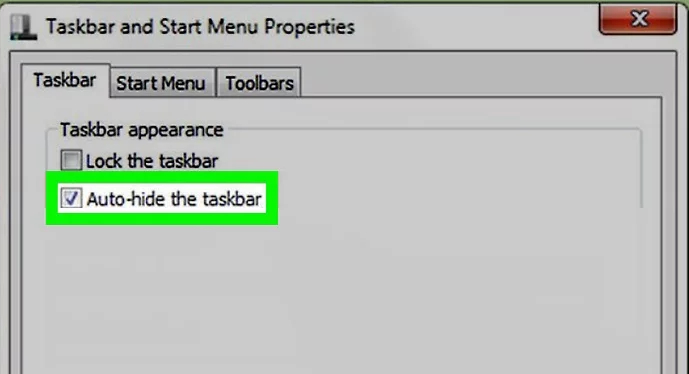
3.Then tap on”Apply.” You will see that Taskbar disappears.
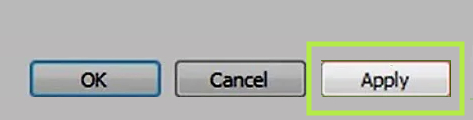
4.Now, click “OK” to close the menu.
5.Like in windows 10 when you move your cursor to the bottom of the screen the Taskbar will appear. it will disappear again when you move the cursor away from it.
BONUS TIP: Change the location of the Taskbar
You can also change the location of the taskbar if you don’t need it at the bottom for any reason. Just follow these steps to change the location of the taskbar.
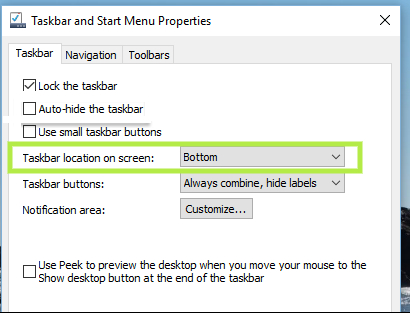
- Right-click on empty space in the taskbar.
- Now select taskbar settings.
- Find an option “Taskbar Location on Screen” and change the location of the taskbar from the options under “Taskbar Location on Screen”.
- You can locate it at the top of the screen or on any of the sides. The change will be made directly.
This is all you need to know about How to hide taskbar in windows 10 and older versions. you can enable your taskbar simply by undoing these steps.

2 Comments
Wonderful beat ! I wish to apprentice while you amend your site, how can i subscribe for a blog web site? The account helped me a acceptable deal. I had been a little bit acquainted of this your broadcast provided bright clear idea|
Nice post. I used to be checking continuously this weblog and I am impressed!
Very helpful information specifically the remaining phase 🙂 I take care
of such info much. I was seeking this certain information for a long
time. Thanks and good luck.