

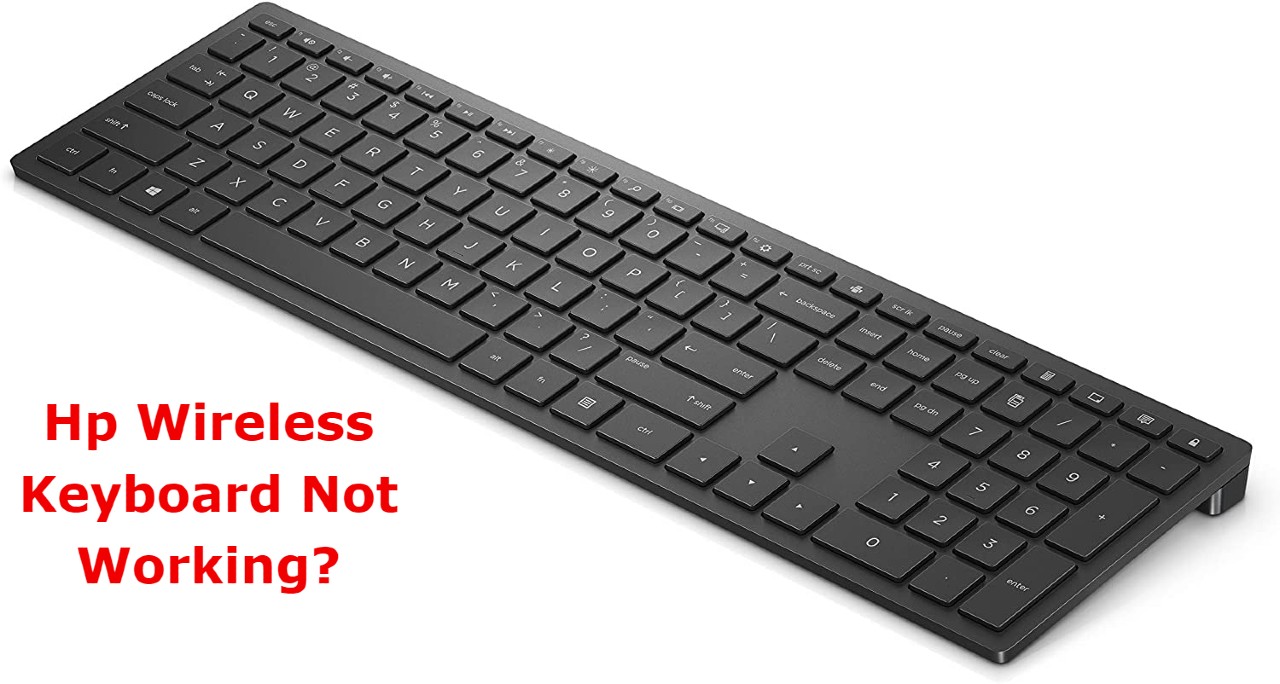
What happens when your wireless keyboard is not working on hp devices, laptops, and PCs? People use the wireless keyboard and mouse for their ease and sometimes follow the trend. Sometimes you’ll face difficulties typing on your wireless keyboard that does not type the letters and users think that it is out of date.
Obviously, there are some problems with your keyboard that you can fix luckily. Basically, this problem increases your stress level when you need this keyboard and it just makes a click beep. Your Artech and Logitech keyboard does not work well due to the plugin port, battery, and upgrading the window.
You need to troubleshoot this keyboard as soon as possible. Don’t confuse the Bluetooth keyboard and other peripherals with wireless keyboards. Make sure to check your wireless mouse or keyboard with other computers and laptops. This method will tell you about the problem with your keyboard or laptop device.
Check the wireless keyboard Batteries
Why is the keyboard not functional but the mouse is working? Mostly, devices have batteries and work well after charging. Some batteries don’t have a charger and are limited in life. If your keyboard does not connect with your PCs then check your battery. Maybe your battery life is expired. In that regard, you need to find out general problems and charge your battery.
Why is the keyboard not functional with new batteries? Whenever you change your batteries in wireless devices then make sure to restart your laptop and Dell devices. If you don’t perform this task then you may fail to reconnect the keyboard after changing the new battery.
Check USB port
If your wireless keyboard is not working by inserting a unifying receiver then check the USB port. Maybe the problem is with your USB port and with a unifying receiver. Try to test by plugging in the receiver in different ports. If you are using a PC port then hopefully it may not be faulty like a USB hub.
On the other hand, after using the USB port you need to verify it. Another reason for your keyboard is damage to the USB or PC port. Check it before inserting the receiver.
Check the power Buttons on the Keyboard
Some keyboards have power buttons and are completely covered by packaging. Check your keyboard before connection and make sure to remove any type of packaging material from the buttons.
- Turn “ON” your keyboard switch to resolve the connection issues
- Insert your USB receiver into the USB port of the computer or laptop
- Make sure to turn off all other connecting devices and move the mouse closer to the keyboard
- Some receivers have connected buttons and some have not
- After inserting it into the port you can connect the USB receiver by clicking on “Connect” and waiting for the flashlight
- If the keyboard does have not a Connect button then wait for ten seconds after removing it from the port and insert it into another computer port
- Within a minute your Keyboard will be connected otherwise try again
Sometimes you fail to connect due to low battery, for instance, charge your battery by inserting a cable into the charging port after switching the ON button and then try again (If you again fail then try to buy a new battery, and surely its work) if your wireless keyboard is not working.
Fix wireless keyboard by removing interference
How to fix the problem of the wireless keyboard by removing interference? There are many devices that connect wirelessly. These devices show their interference and become a hurdle for wireless keyboards to connect. Plasma TV, wireless router, mobile phones, and other metallic devices are the main hurdles.
Make sure to keep these devices away from your keyboard otherwise you are not able to connect easily. Two to three computers in a room with a wireless keyboard definitely interrupt the signals. Try to keep one computer away from another for better signals. In this way, you want to fix your computer in different rooms.
Yet, it is necessary to prevent the hurdles if you are a Bluetooth keyboard user. So, how to connect the Bluetooth keyboard?
- Check the packaging and remove it from the buttons
- Set the button “ON” on the wireless keyboard
- Go to the window of your computer or laptop
- Open “Settings” and search the “Bluetooth and Other devices”
- Click on Bluetooth and other devices
- Turn the Bluetooth “ON”
- Within seconds your keyboard shows on the computer for connection
- If your keyboard does not show then click on Add Bluetooth and other devices
- Add your device for making a pair and use it (make sure to avoid any other interference)
Resynchronize the wireless keyboard
Does the resynchronizing method work on a wireless keyboard? Synchronize your keyboard with the HP device by clicking on the receiver “Connect” button. The green flashlight shows on the receiver and fixes it into Port. Now click on the keyboard “Connect” button.
The device will synchronize when the flashlight of the receiver will stop flashing. Make sure to click on the keyboard within 2-3 seconds. If your device does not connect by synchronizing then resynchronize it by applying the same method. Hopefully, it will work.
Connect with another device
Is it work to connect the keyboard to another computer? If you try all the tricks but all in vain then try to connect your keyboard to another device. However, if your wireless keyboard is not working on another computer then the problem is with your keyboard.
Hopefully, the issues battery, interference, and USB port issues are not shown on another PC. Then definitely issues are with your computer and laptops. It is possible the issues are with your device hardware or software driver.
Go to the manufacturer and fix your computer window problem.
How to stop keyboard clicking sound by Upgrade software drivers?
As software in Windows 8.1 or 10 helps to run and control the computer. Each window has the software but with time we need to upgrade it. Install software “drivers” that help to work properly and your keyboard is connected easily without clicking sound. Sometimes you install the wrong drivers.
Wrong drivers are not suitable and cause damage to your window. In this way, your keyboard also does not connect with your device due to the wrong drivers. Choose a suitable site to download authentic software to prevent any disruption. This device driver is used to make hardware functional accurately.
Hp Wireless keyboard not working: Troubleshoot
You can run a troubleshooter for problem detection. How to run a troubleshooter on your Computer or Hp laptops? There are some simple steps to run a troubleshooter and save your device.
- First and foremost, go to the Window Key and hold it, also press R
- Open the option of Run tab, Write the Control.exe/ name Microsoft Troubleshooting
- Click on “Ok” and now select “Hardware and Sound” in “Troubleshoot Computer Problem”
- Next, select “Hardware and Devices” then click on “Advance”
- Mark a tick on the option “Apply repair automatically” and click on “Next”
After applying these methods your computer will automatically detect and explain or resolve the issue.
Final words
So finally you got useful tips to follow when your HP wireless keyboard is not working well. When your keyboard makes just clicking sounds or beeps but does not type any letter then you need to check your keyboard. You can check your keyboard battery. If your battery has a low charge then your keyboard does not work.
Before using the keyboard, charge the battery and remove the interference of metallic devices. Keep your mobile phones and plasma TV at a distance from your wireless keyboard. If these methods do not work then resynchronize your hp and dell devices. You can run troubleshooting for the detection of problems and recover them.
There are lots of keyboards like Logitech and Artech. You just try to follow these tips on all wireless keyboards. Check your Pc port before inserting the receiver. Lastly, a bonus tip is you can also click on the window and space bar buttons for the keyboard to work.
