


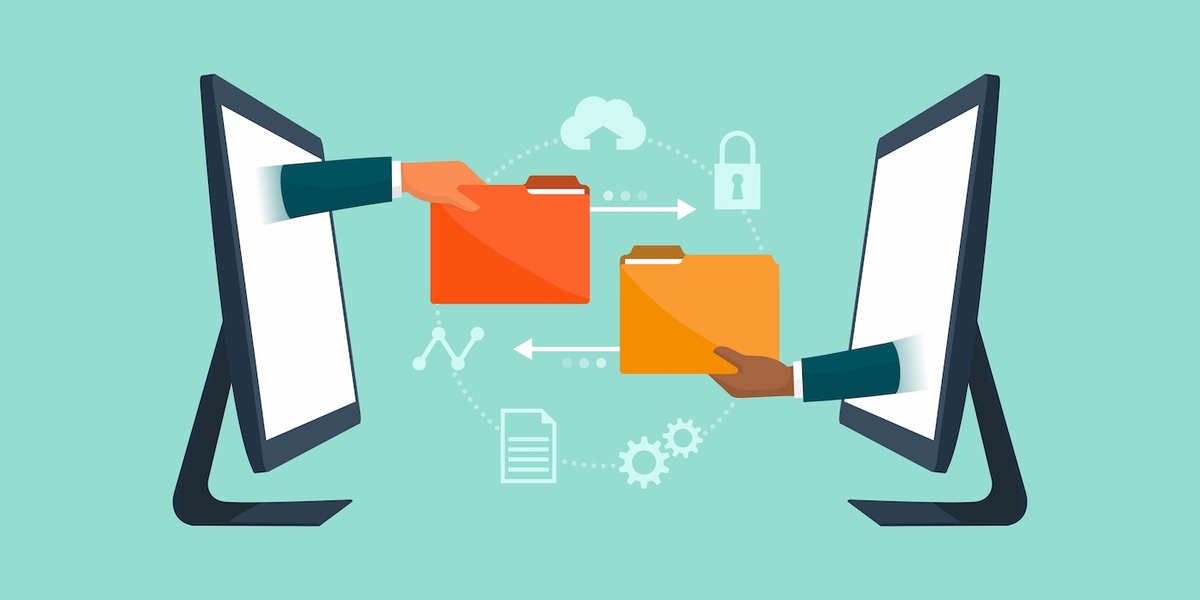
Working remotely from home has become easy and trendy, but enhancing team productivity is crucial. It’s vital to be concerned about your project management if you have set up a crew from various locations. However, some software, syncing apps, and tools allow sharing of heavy files, but not all. Here, I will clarify the 5 ways to share files with your team while working from home.
One can attempt different ways according to file size and software security. Whether you want to get access to files or desire to stay in touch with the team through video conference, here is the complete guide to using storage apps and tools. Let’s initiate the methods!
How do I share files with my team while working from home?
- Method 1- Google Cloud-based storage and syncing services
- Method 2- File transfer protocol
- Method 3- Email the files
- Method 4- Different Team leading software
- Method 5- Video meetings
Method 1- Google Cloud-based storage and syncing services
Cloud storage is among the best and most widely used file-sharing platforms. This platform authorizes users to edit, view, and comment on documents. Cloud storage ensures file security and gives control keys to users. Let’s see the most usable cloud storage platforms!
- Google Drive
- Dropbox
1- Google Drive
Google Drive is the world’s top file-sharing platform. It gives multiple benefits to users. That is why 70-90% of people use it. Let’s check the benefits of using Drive!

- Google Drive permits 15 GB of storage to save and share files, which can be enough for every new and old user. Besides, if you want more space, you can buy a storage plan at a reasonable price.
- With Google Drive, your files will be saved and secure because of Google’s privacy policies. You should set up two steps to authenticate to ensure your account security.
- You can get data access on your Android or smartphone via Doc and Sheet apps.
- Google Drive helps in automatic backup to save your data and much more.
Do you want to give it a try? Let’s see how to use it.
- Make a Google account and access Drive.
- At the upper left side, select “New” and hit Google Docs, Google Sheets, or whatever.
- Open the blank file. Otherwise, find out the existing or already saved file.
- At the upper left side, access the share option and click on it.
- You can add people or groups and also give general access. In General access, set the restricted option or allow access to “Anyone with Link.” Now, set role viewer, commenter, and editor.
- Copy the link, save the file, and send it to your teams through any social media platform.
2- Dropbox

Dropbox is another excellent file-sharing and synchronizing platform with 2GB of storage space. It authorizes to purchase of paid plans for additional storage spaces. Dropbox allows virtual access to files from any device due to its wide range of operating systems. If you work in a team and require every member to work on the same file, you can use Dropbox to track the work progress.
Besides, Dropbox has various collaborative tools that ensure security and give offline access for the customization of files. Let’s see one out of 5 ways to share files with your team while working from home using Dropbox.
- Make an account on Dropbox by selecting the basic plan.
- Click on Upload the files or Upload the folders to save the files in Dropbox.
- Right-click on the folder or file and click the “Share” option.
- Edit access and share the file link with team members.
Method 2- File transfer protocol
A way to transfer data from one location to another or between computers on the Internet is known as FTP. Let me describe; only 15-25%% of people worldwide are familiar with transferring files via FTP. Those people are Web developers, tech fanatics, IT professionals, computer experts, etc. Here are the top-notch benefits of FTP!
- File transfer protocol ensures security in sending files due to FTPS
- Suitable for sending large files and heavy data speedily
- Act as centralized digital storage to manage the data
- Allow users to track the file progress
Here are the steps to use FTP to send files.
- Search FTP service provider on Chrome and select the authentic one.
- Put the credentials and navigate the files on the server.
- Navigate the “Upload” option and click to upload a file.
- Select the location and save the file.
- You can share the credentials of the FTP account with team members to share files.
Method 3- Email the files

Professional conversations begin with emails before starting the projects. However, email is a reliable and classy way to discuss with teams, share files or contact information, etc. Besides, you can’t send more than 20-35 MB files due to email server capacity. Let’s see some advantages of file sharing through email!
- Email helps in saving the record of sending and receiving files.
- Secure to sharing files if you have set the two-step authentication with a Gmail account.
- Email is easily accessible and usable due to its user-friendly interface.
Here is the guide to using email to share files with the team while working at home.
- Make a Gmail account and open it in Chrome.
- At the upper left side, hit compose to open the new message tab.
- Enter team members’ mail accounts to receipts and add the subject line.
- Now click on the option Attach file>Select file>Click on Send.
Method 4- Different Team leading software
To work on a complex project, select the best software for smoothly ending the task. So, the various software works precisely for a limited time. Hence, the software helps with project management, allows communication access, and provides a collaborative environment. Here are softwares that helps in team leading.
- Basecamp ensures access to project administration and organization. Also, you can make a to-do list, schedule reminders, and send files to team members. Besides, Basecamp is easy to use.
- Asana software helps in detailed task management and tracking reports. It’s best for handling complicated projects.
Method 5- Video meetings

The last method out of 5 ways to share files with your team members while working from home is video meeting through Zoom or Google, etc. Imagine you want to share files, presentations, and images to provide detailed instructions to your team; video meeting tools can be beneficial. It saves time, and you can record the meeting to clear the project perspective.
Bonus tips for sharing files with your team
Here are some bonus tips to share files with your team. Let’s grab more knowledge!
1- VPN
Test a VPN to share data if you want to try another method. Virtual private networks ensure security in transferring files privately between your computer and the internet.
2- Team collaboration tools
Another way is team collaboration tools like Trello and Slack. Trello is mobile-friendly and specially designed for working in a large team. Besides, slack is flexible to use, and provides advanced features to manage data.
Conclusion
I have shared the 5 ways to share files with your team while working from home. Nowadays, everyone is using a Google account. So it’s easy for them to use cloud-based storage platforms. Google Drive, Onedrive, and Dropbox are common in working in the office and at home.
However, tools and software like Trello, slacks, Asana, and Basecamp are also widely used worldwide. You may prefer tools according to your location and file size. Stay with us!
People Also Asked
Ans. The most secure way to share files is by selecting a secure platform that allows two-step verification. During registration, enter a strong password and verify your account on platforms.
Ans. Open the “team’s channel” and click the “Attach” option. Select “Upload” to upload a file from the computer. Click send to share file on Microsoft Teams.
Ans. By using Cloud-based platforms, you can share large files with others for free. Also, use email services to share a 25MB file size.
