


Have you lost your precious pictures from your iPhone? Don’t worry; we are here to help you out. In the digital age, losing any data, including pictures has become a common as well as frustrating issue. There are several reasons like accidental deletion, virus or malware attacks, software glitches, etc. why your pictures may get deleted. Things get worse if you don’t have any backup of those deleted photos on your iPhone.
Luckily, there are many iPhone data recovery methods available online that you can try to get your deleted pictures back. This quick guide explains these methods to help you know how to recover your lost photos from your iPhone. Just go with these methods to retrieve your cherished memories with ease.
Can I Restore Deleted Photos on my iPhone?
Many of you must be wondering if it is possible to restore pictures deleted from your iPhone. The only answer to this query is: YES! You can easily restore lost files, but the possibility of recovery varies due to several factors. These factors include:
- Backup Status: If you have created any backup of your iPhone using iTunes or iCloud, then you can use it to restore your lost photos.
- Time since Deletion: The ease of executing photo recovery from an iPhone depends on the time since when your photos were deleted. If you’ve recently deleted the photos, then the chances of recovery are higher.
- Device Settings: Some settings on your iPhone can affect photo recovery. For example, if you’ve enabled iCloud Photos, your photos are continuously synced with your iCloud account, increasing the chances of recovery from the cloud.
- Overwriting Data: If your deleted photo is overwritten by any new file at the storage space where it was earlier stored, the lesser the chances of recovering it.
- Use of Third-Party Recovery Tools: If the manual methods fail to restore your deleted photos, you can use a professional third-party data recovery software. It is important to check the efficiency and features of your data recovery software and then select the one that is more effective than others.
Quick Methods to Recover Deleted Photos on iPhone
Now that you know it is important to apply the iPhone data recovery methods at the earliest when you encounter photo loss issues, it’s time to learn and apply various recovery workarounds. In this part of the blog, we will provide some quick and helpful methods to help you know how to recover deleted photos from iPhone quickly:
Method 01: Recover Lost Photos From Recently Deleted Folder
Before you proceed with any method for photo recovery from your iPhone, it is important to check the Recently Deleted folder. As the deleted files on iPhone or any device go to the Recently Deleted folder for some specific days, it is important to check the folder first. Go through the following steps to recover your lost photos from your iPhone from the Recently Deleted folder:
- Launch the Photos app and click “Albums” located at the bottom.
- Scroll down and click the Recently Deleted folder.
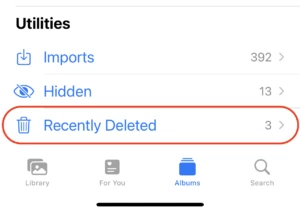
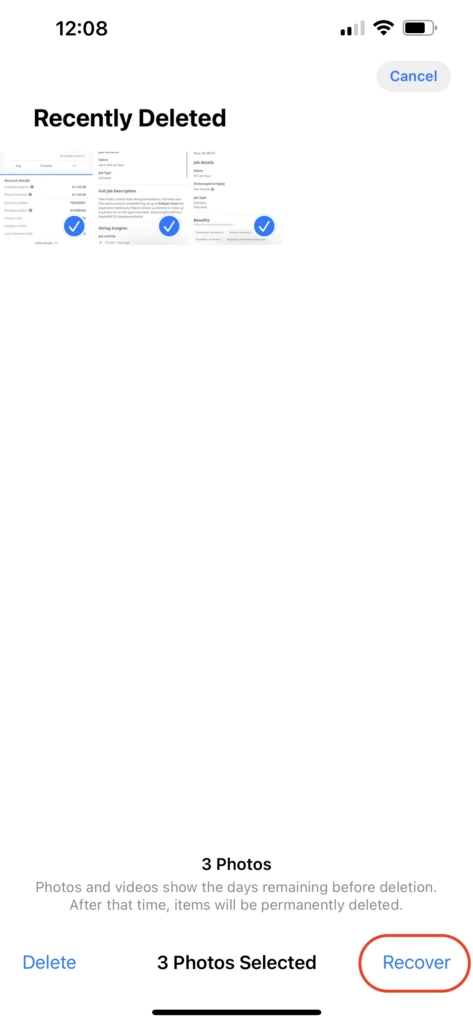
- Now, click the Select option from the top-right corner and choose the photos you want to recover.
- At last, tap the “Recover” button to restore them to your photo library.
Method 02: Recover Deleted Photos Via iCloud Backup
If your deleted pictures are not present in the Recently Deleted folder, then you can use iPhone backups to restore them. There are different ways to create backups of your photos on iPhone – iCloud and iTunes backup. You just need to enable these backup options on your device to automatically create a backup of your photos in the cloud.
Now, check the below-given steps to recover your lost photos from iCloud:
- Open the Settings app on your iPhone.
- Click on your name and then select “iCloud.”
- Navigate to “Photos” and check if the “iCloud Photos” option is enabled.
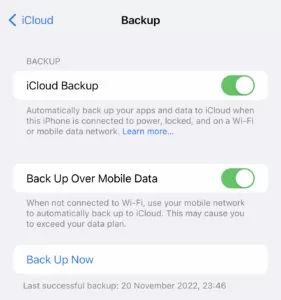
- If your photos are stored in iCloud, then you can access them after logging in to your iCloud account using Apple credentials.
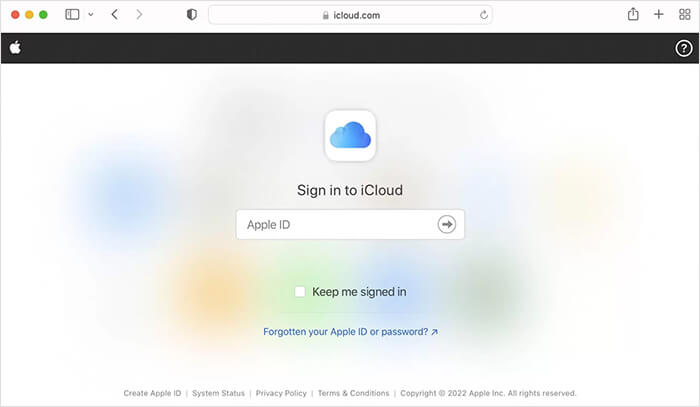
- After logging into your iCloud account, choose ‘Photos’ from the app list.
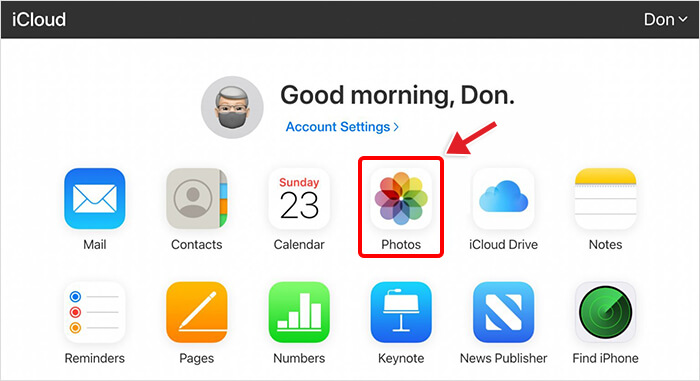
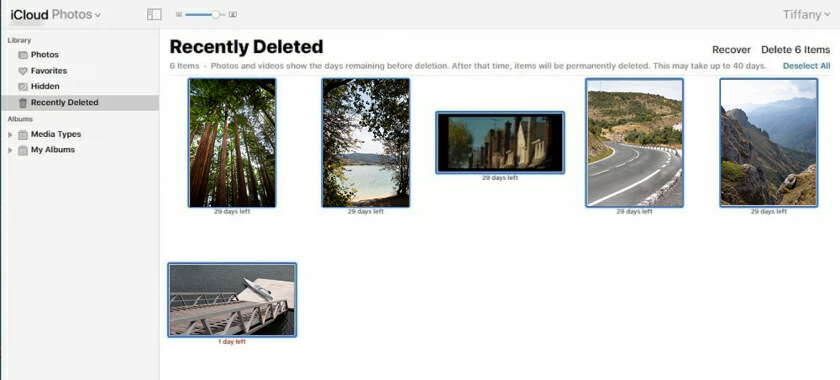
- Go to the Recently Deleted Album, choose the photos you wish to restore and click Recover.
Method 03: Recover Photos Via iTunes Backup
Another backup alternative to restore deleted photos on iPhone is by using iTunes. If you regularly backup your iPhone to iTunes, follow the below-given steps to recover photos:
- Connect your iPhone to a computer where iTunes is installed.
- Launch iTunes and choose your device.
- Select “Restore Backup” and choose the most relevant backup with your lost photos.
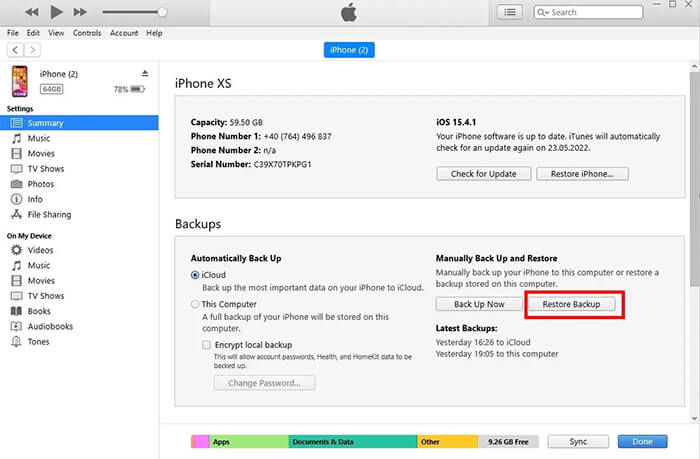
- At last, tap “Restore” and wait till the process is completed.
Once done, check if your iPhone is restored to that backup and you are able to access the lost or deleted pictures.
Method 04: Use Data Recovery Software
If the above manual methods for photo recovery from iPhone fail, you can try using a professional data recovery tool. There are several third-party recovery software programs available online that allow you to get your deleted photos back without any effort. One of the popular iPhone recovery software that supports easy and quick recovery of your lost pictures is Stellar Data Recovery for iPhone. The software supports recovery of lost images of any format, including JPG, PNG, and any more from iPhone, iPad, iPod touch, etc.
To recover your lost photos using the Stellar Data Recovery for iPhone software, you need to:
- Download and install the Stellar Data Recovery for iPhone software on your computer. Connect your iPhone to that computer using a USB cable and launch the software.
- Select the type of file you need to restore and click Next.
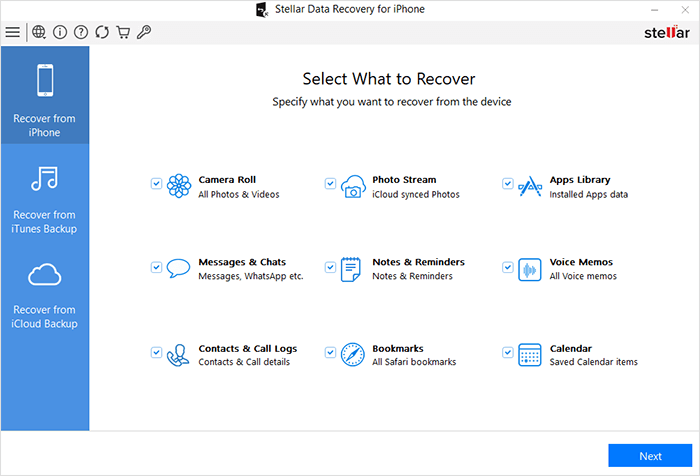
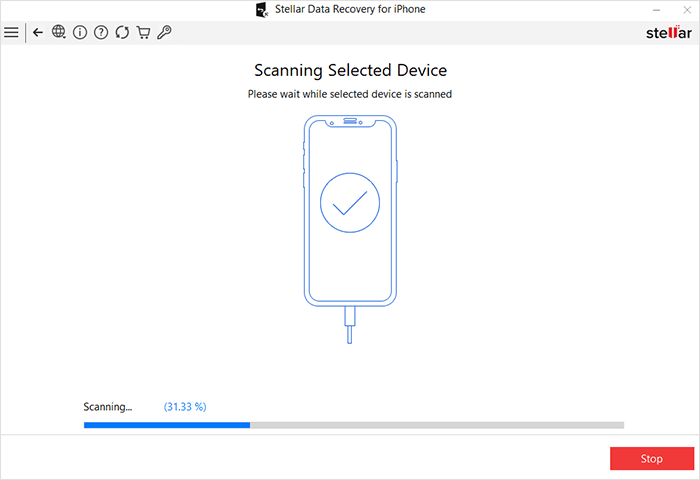
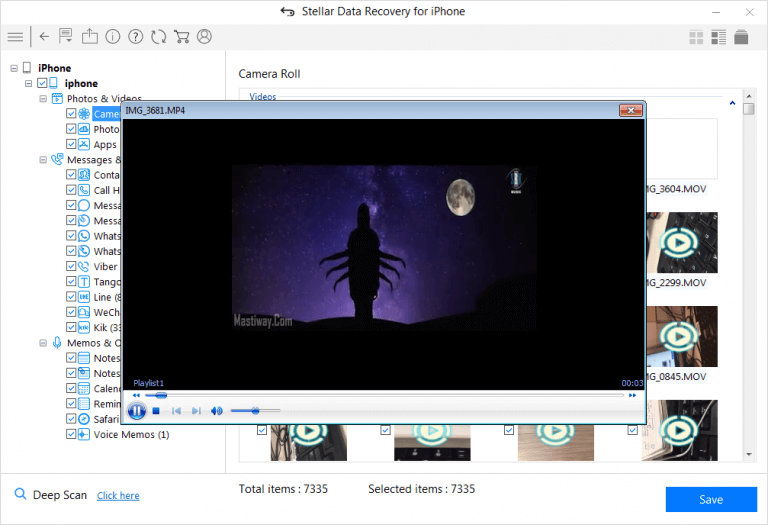
- Now wait till the scanning process is completed. After that, preview the recoverable files and select the files you need to recover.
- Click the “Save” button to save selected files back to your computer.
Preventive Tips to Avoid Data Loss Issues on iPhone
While the above methods help you know how to recover your lost photos from your iPhone, prevention is always better than cure. It is good to keep the following tips in mind to help you avoid losing your precious memories in the future:
- Maintain regular backups of important files stored on your iPhone to iCloud or iTunes.
- Enable the “iCloud Photos” option to automatically back up your photos to the cloud.
- Use reputable antivirus software on your computer to avoid potential threats caused by viruses and malware.
- Be cautious while deleting photos from your iPhone, and always double-check before confirming any deletion.
- Keep your iPhone’s operating system and the installed applications up to date to minimize the risk of software glitches.
Wrapping Up
Losing precious photos on your iPhone can be a painful experience, but with the right iPhone data recovery tools and techniques, you can recover them successfully. Along with the data recovery methods, make a habit of creating backups of your important files on external storage locations or cloud storage like iCloud or iTunes. If you forget to maintain backups, use the all-in-one Stellar Data Recovery for iPhone tool to get your deleted files back in a few simple clicks.
