


Creating YouTube Playlists
A YouTube playlist is a group of streaming videos that play in order automatically. Any YouTube user can create more than one playlist for free, either for their own enjoyment (Private) or to publicly share with the entire YouTube community. YouTube is a great place to find music. But, repeating a song at times isn’t the best way to hear a group of songs.
Fortunately, one can create YouTube playlists of their own favorite tunes to keep the music flowing. You can also include videos that are unrelated to the music. Mostly the content on YouTube can be added to a playlist, but there are a few limitations. “Made for Kids” videos cannot be added to your YouTube playlist, because they are banned due to US Children Online Privacy Protection Act (COPPA) regulations, to protect children.
If you are planning to use the YouTube playlist for music at a party, remember that most of the videos will run an advertisement at the start. It increasingly applies to user-generated content as well. If you don’t have any problems with ads. You can easily switch to the YouTube Mix playlist.
You can make a playlist either on YouTube Web or on the YouTube mobile app for iOS or Android. Here’s how.
How to Make YouTube a Playlist
To create a playlist on YouTube.com or the YouTube app
Go to YouTube in a web browser or open the YouTube app on your mobile device.
If you are not already logged into your Google account. Select Sign in in the upper right corner.
Enter your login details to log in.
- Select Create when done.
- It’s easy to create a YouTube playlist once you log into the site. Just find a video that you want to add to your playlist and go to it.
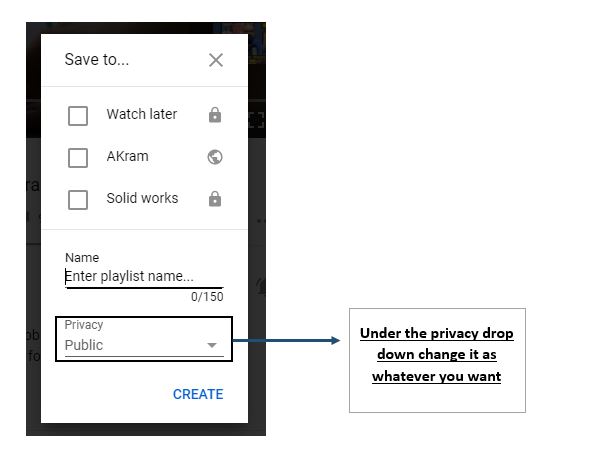
- After playing the video, click the “Save to” button below the video to add it to the playlist. You can add videos to a playlist named “Watch Later” (By default). You can also create a new one (see image below for creating a YouTube playlist) .
- Enter a name for your playlist in the Name area.
- Now, select “Create” when you are done. You can also add your videos to already created playlists which you have created and named before.

NOTE:
To add second or more videos, you only have to click “Save to” and then “Blue Check Mark” on the box left of the name of the playlist. By repeating these steps, you can add as many videos as you want.
Once playlists are created, you can access them from the menu icon in the upper left corner of the screen and choose “Library”.
Inside the library, you should see the name of your new playlist. Select the playlist to go to its playlist page.
To customize your videos you can go to the Video Manager through your profile icon, then go to the “Edit Playlist” option. You can then rearrange the videos by hovering your mouse over the video and then you will see a gray vertical bar to the left of the checkbox. Hit the gray bar, and drag and place that particular video to move it in order of your own choice. Editing mode, also allows you to delete videos. Just select the checkbox next to the clip and then click the “Actions” drop-down button. Now select “Remove Videos from the playlist”.
Privacy of the Playlist
The privacy of the playlist can also be changed, it can be public (everyone can see it), private (can only be viewed by you and up to 50 other people you invite) or unlisted (people with the link only can view them).
When you come to your YouTube Home Page, you will find your created playlists near the upper-left corner under your name or you can also operate them from the Library section.
To make your playlists public, private, and unlisted see the image below.
Click “Save to” under the video you want to add and click “Create New Playlist” you will see something like this:
So, now you know how to make a YouTube playlist or create a playlist. You can now enjoy non-stop music or non-stop streaming on YouTube and won’t have to search again and again for your music videos. If you know any other method or an easy feel free to share them with us in the comment section.
