

An OST file is created by Microsoft Outlook when you configure an email account with Exchange, Microsoft 365, or IMAP. It stores all your mailbox items on your local device. This file is linked with the specific Outlook profile in which it is created and is encrypted with a unique MAPIEntryID GUID key. Because of this, you cannot access or import the OST file directly into any other Outlook account or profile.
If you’ve an old OST file and want to access it in New Outlook, then read this guide to know the possible ways.
How to Access Old OST File in New Outlook?
To access the OST file in New Outlook, you have to first convert the file into PST – an Outlook-importable file format. After this, import the PST into your New Outlook to access your old OST file items. Let’s see how.
1. Convert your Old OST File into PST
You can’t convert an old OST file using Outlook if it is not linked to any account. For converting such type of file, a specialized OST to PST converter tool, such as Stellar Converter for OST is an apt solution. This is a DIY tool that is specifically developed for converting inaccessible or orphaned OST files to PST. It preserves the folder structure, formatting, attachments, metadata, and other details intact after the conversion. It is capable of converting large or oversized OST files with complete integrity. Furthermore, apart from PST, it provides different options such as MSG, EML, RTF, HTML, and PDF, for saving the OST file items.
Follow the steps given below to convert your old OST file into PST by using this tool:
First of all, go to the official website download the tool, and install it.
- When you launch the tool, you will find two options: List Profiles and Choose Manually.
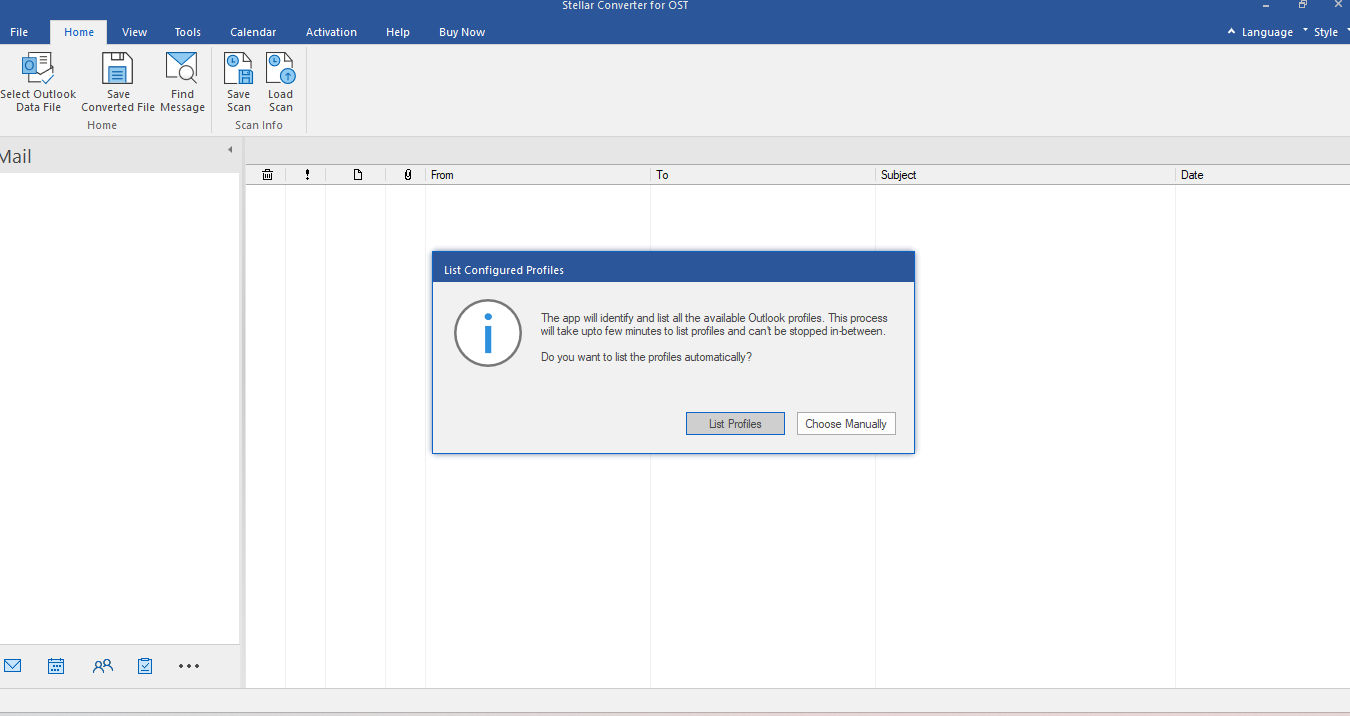
- Select the option – Choose Manually and then choose the OST file that you want to convert.
- Click on the Convert button to start the scanning and conversion process.
- After the scan is finished, the software will list all the mailbox items. Preview and verify the items.
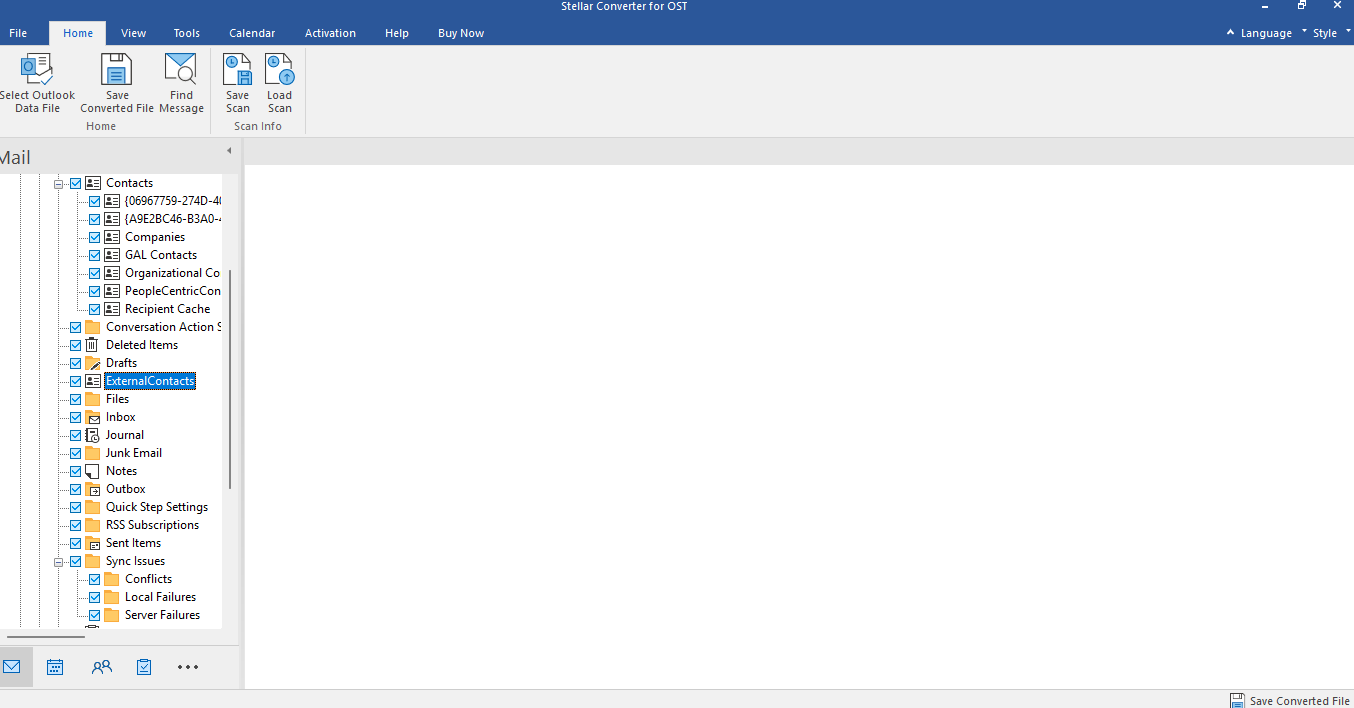
- Select Save Converted File from the home ribbon, choose the file format as PST in the Save As window, and click OK.
- On the next dialog box, choose the location/folder on your system to save the converted file. Click OK to start the saving process.
- Once the saving process is complete, you will see a Saving Complete message. Click OK.
2. Import the PST into your New Outlook
Once you’ve converted the old OST, the process to import the PST into New Outlook is straightforward. Although the New Outlook doesn’t have a direct feature to import the PST files, it provides an option to switch to Classic Outlook. Let’s see how to do this:
- Launch your New Outlook. Switch to the Classic Outlook by clicking on the toggle located on the top right corner of the screen.
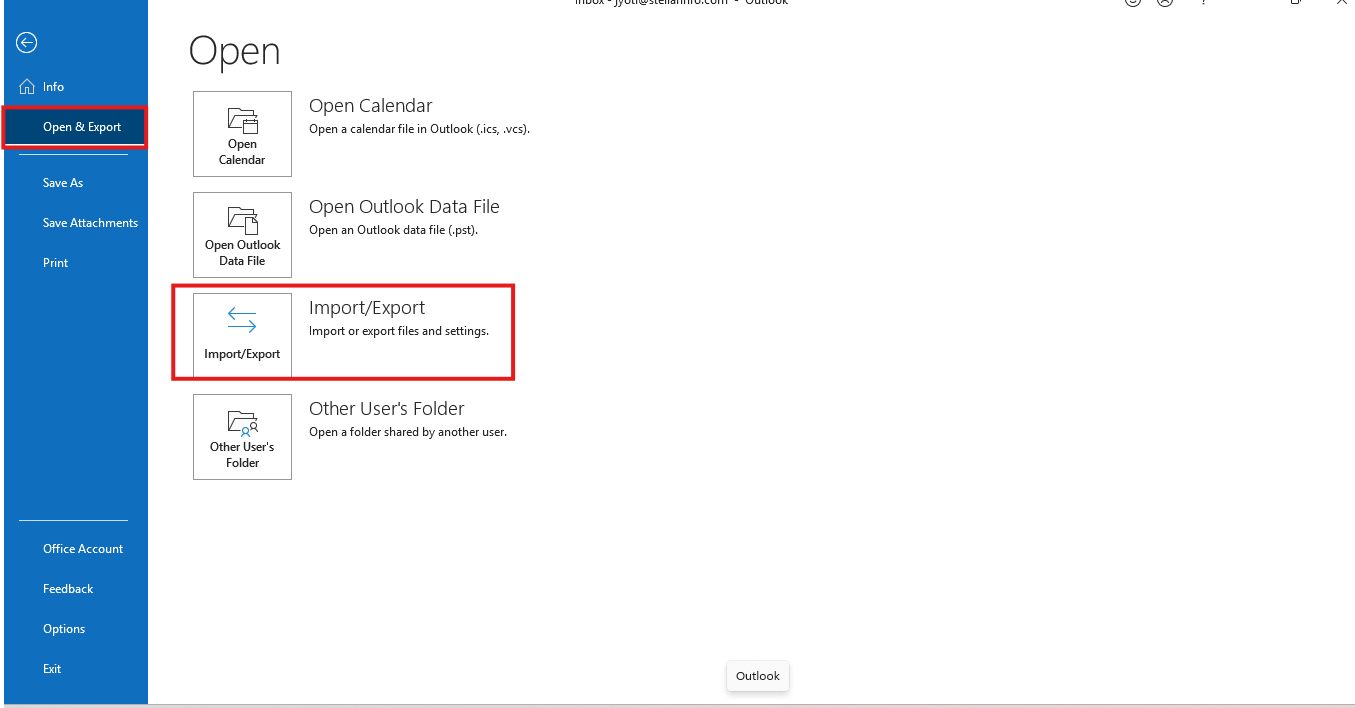
- Go to File > Open & Export and click on Import/Export.
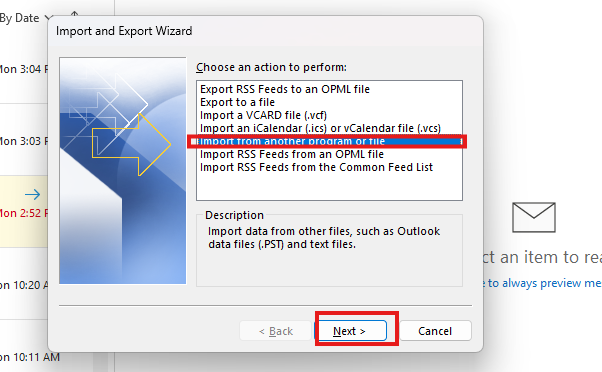
- Choose the option – Import from another program and click on Next.
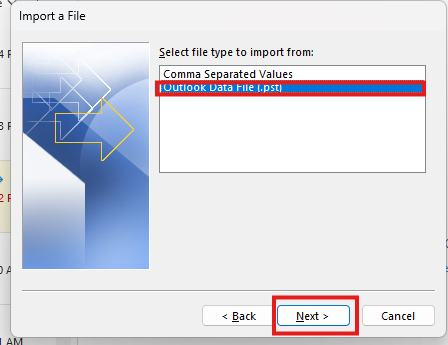
- Select Outlook Data File (.pst) and click Next.
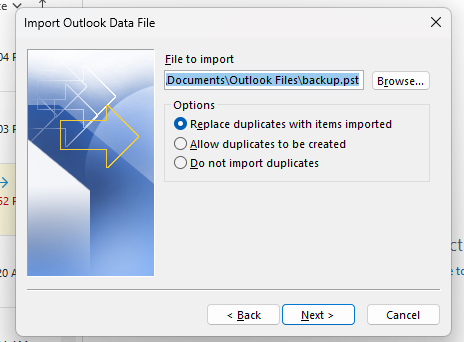
- Click Browse, choose the location of your file, and click Next.
- In the next window, select the folder to import from and select the Include subfolders checkbox. Choose the profile and then click Finish.
When the import process is finished, switch back to New Outlook. You can now access your converted old OST file items.
A Workaround to Access Old OST File in New Outlook
If you have credentials of your Outlook profile associated with the old OST file and mailbox on the server is available, then there is a workaround to gain access to its data. You can reconfigure your old profile in New Outlook with the same credentials. Follow the below-given steps:
- Start the New Outlook application.
- Click on the Settings (gear) icon and then select Accounts.
- Select Add Account. Enter your old account credentials and click Continue.
- Follow the on-screen instructions to complete the process.
- Once the account is added, Outlook will synchronize the mailbox items from the server.
- You can access all your mailbox data in the New Outlook after the sync process is complete.
Conclusion
As explained in this guide, it is not possible to directly open or access an old OST file into New Outlook. Nevertheless, this can be made possible by converting the OST into PST file format. To do so, Stellar Converter for OST is a perfect OST to PST converter tool. This tool converts OST files – orphaned or inaccessible – of any size and of any Outlook version with 100% precision. After the conversion, you just have to import the converted PST file into New Outlook by switching to Classic Outlook.
