


Due to the Coronavirus pandemic, working from home is the new trend. If you have been working from home for the past few weeks, most probably you are using the video chat app while communicating with your close ones on social media, or you have to attend video conferences in this work from home environment. As we know that webcams most of us possess have no quality. It creates blurred, dotted video calls which is more disturbing. Are you looking for a better quality camera than that on your Mac or PC? Or do you have this question that how to use DSLR camera as a webcam? We have in this article how to convert a camera OR DSLR you already own into a webcam for video calls on Zoom, Skype, or Google Meet.
You can also use your phone as a webcam and can cope up easily with the webcam problem, but you may not get the best picture quality. If you really want to increase your video call game, you can actually use a DSLR or non-mirror camera as a webcam for your computer and get the best video for anyone in your group chat.
Top 3 Software to convert DSLR into a webcam
Eos Digital Camera Utility Beta app
There are multiple ways that allow using a DSLR camera as a webcam. Counting on the camera and your pc, this will be as easy as downloading software and employing a USB cable to attach the camera to the pc. If you’ve got a recent version of the Canon camera compatible with the Eos digital camera Utility Beta app and a Windows computer having windows 10, the latest app permits you to attach the camera to a pc to use Dslr camera as a web camera. Except for the supported camera and Windows 10, you must have a compatible USB cable for the camera to be able to connect it to the pc. If you meet these necessities, you’ll currently simply discover Eos digital camera Utility. Follow these steps to convert your DSLR camera into a webcam.
- Download Canon EOS Webcam Beta.
- Now provide the camera serial code to access the download. You can find it at the bottom of the camera battery slot or in the original user packaging.
- Run the installation file and follow the instructions on-screen to complete the setup.
- Connect your Canon DSLR via USB. Now launch the Canon EOS Webcam Utility and follow the on-screen instructions to connect the camera.
- Until you are done with your meeting don’t turn off the EOS Webcam Utility app. It maintains connectivity so it must be running in the background.
Now you can select the camera as a web camera in applications like Zoom, OBS, Facebook Messenger, Skype, Google meet, and more. EOS Webcam Utility must be running in the background to maintain connectivity, so don’t turn it off until you finish the camera).
It’s a free download directly from Canon, but you’ll first need to check this list to see if your Canon camera is compatible. Also, this is a beta program so you may encounter errors, or only US Canon camera models are supported.
If your camera or PC is not compatible with Canon EOS Webcam Utility. Don’t worry there are other ways to use a DSLR camera as a web camera. If you are Mac users try CamTwist Studio for free instead.
SparkoCam
Another option is SparkoCam for PC. It offers a free trial, but it puts a watermark on the image. The version costs $ 70 for the unlocked version, which works with many Canon and Nikon cameras. Sparkocam for Windows is free to download but will leave an annoying watermark on your video. You can remove the watermark by purchasing a license. For an annual license $ 70 or $ 100 for lifetime access
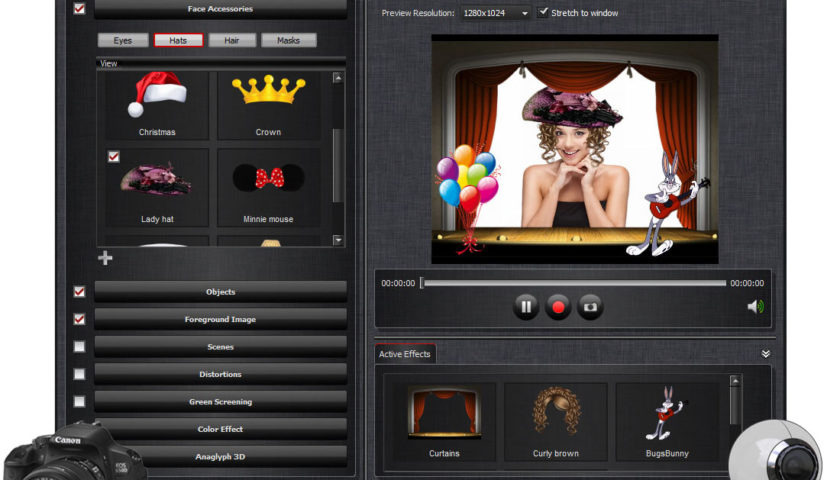
- Download the free SparkoCam software from the company’s website.
- Connect the DSLR camera to the computer using the cable that came with it.
- Click on the device tab in Sparkocam, where you can automatically detect the camera.
- Open any video chat app and select “SparkoCam” to use the DSLR camera as a webcam.
Elgato CamLink
There are some other options too. You can also go to the path of external devices with a camera capture card like Elgato CamLink.
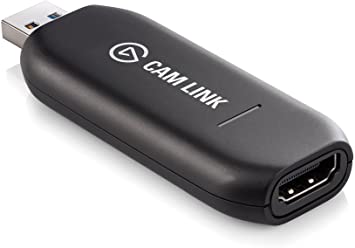
- Use an HDMI cable to get the live image from the camera.
- Now, you’ll need a capture device like Elgato CamLink ($ 130).
- Once the compatible camera is connected to the dongle, it converts the HDMI signal into a USB signal so you can use the camera as a web camera.
- Now select the camera in the video conference application of your choices such as Zoom or Microsoft Teams
There are also many software solutions for different cameras, but most of them include “virtual” webcams created by software that many applications cannot use
I hope this article would be of some help to solving the question that How to use a DSLR camera as a webcam. Share your queries and experience with us in the comment section below.
Thank you.
