


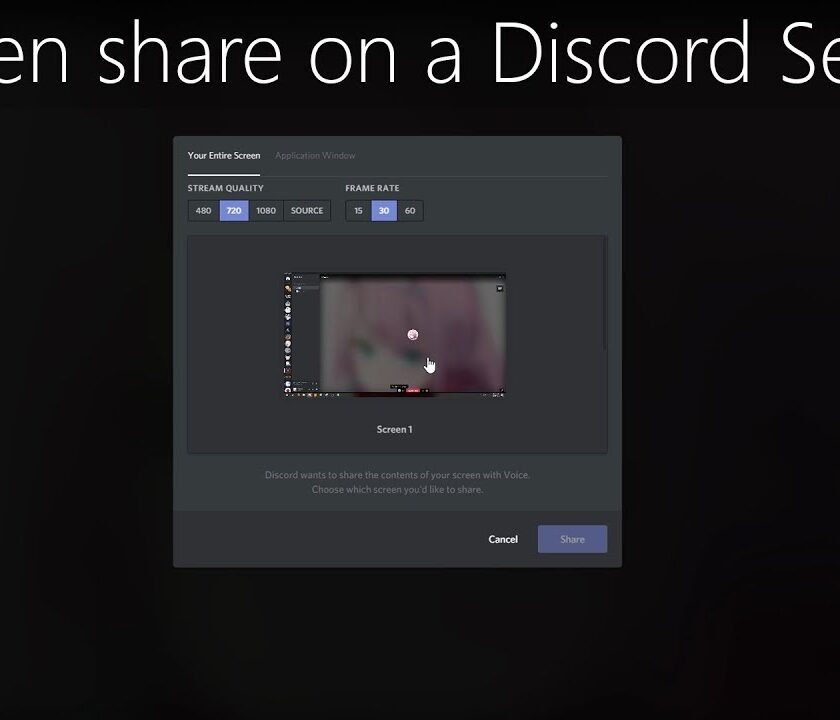
Discord is one of the Best Full-featured text and voice chat platforms for gamers. Using this you can create your own Discord Server for some game groups or some other social networking trick. Video games are meant to be interactive it does not have to be an individual’s experience. Discord allows you to video chat with your friends or share your screen simultaneously while playing games with up to nine other group members. While displaying screen share discord, you can also speak while playing the game to catch the audience’s attention. You can also watch or share marvelous gameplay. This is what makes discord screen share incredibly useful and this is the reason why Discord is giving a tough time to its competitor in the meetings and video call apps market.
However, after all the added benefits that Discord is offering, it does not pull unwanted bandwidth during your gameplay or broadcasting. This screen-sharing feature is already available in-app so there is no need for any third-party app. In this article, I will show you how to screen share on discord and different problems you encounter like discord screen share audio not working, and their solutions.
What Is Discord?
More than 2.6 billion gamers across the globe use Discord to play games and interact with each other. Now, it’s rebranding itself as a “place to chat” for anybody and everyone who needs a space to do so. In recent years, it has become a popular alternative to the likes of Slack or Microsoft Teams in the workplace.
Discord’s finest feature is that it’s free for everyone to use. There is no need to pay for anything to get started with a server or to develop your server with other users. To boost your server’s video and Livestream capabilities, you may upgrade your Discord account to Discord Nitro, although for most corporate usage, this isn’t essential.
It is necessary to confirm the identity of users connecting from various IP addresses through email, and new users may only join your server after receiving an invitation link from you. A message board, chat room, and VoIP talking system are all included in Discord.
Discord Screen share solutions:

Discord’s Video/Camera Settings
Before proceeding further on how to enable screen sharing on the discord server, first, check your video and audio devices and set them correctly on the discord server. Now connect your webcam and microphone if you want to do a video chat. If you just want to broadcast your screen on the server you don’t have to set up your camera.
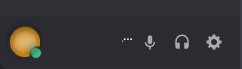
- Click on the gear icon on the right of your username and in the lower left of Discord Interface.

- Now, head to the right menu and scroll to the application settings.
- Now, select audio and video to adjust your voice and video chat settings.

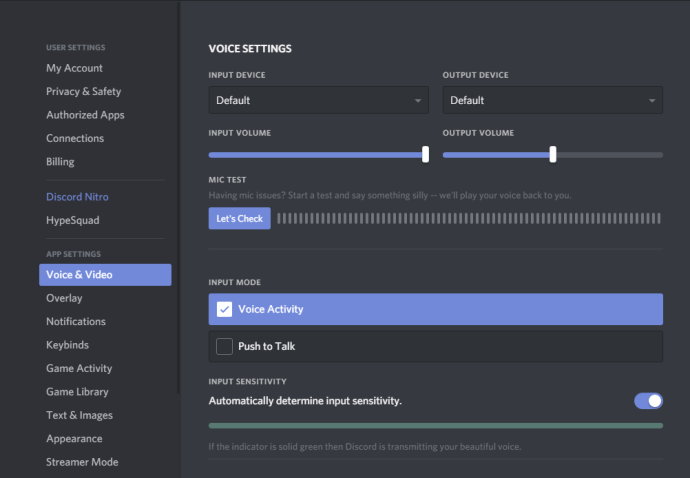
- Scroll down to Video settings to select Camcorder from the drop-down menu.

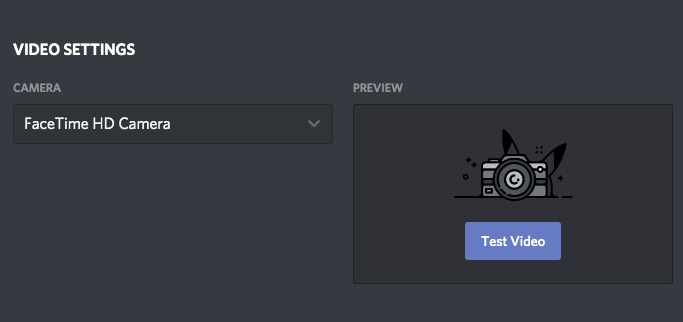
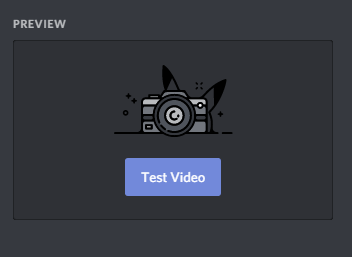
- You have the option to appear in right to test the video in order to confirm that everything is working correctly.
How to enable screen share on the discord server
You can only share Screen on Discord on your computer or Mac on the web. This feature is not available for mobile. Before starting a video call, you must have to be a Discord friend with every single person you want to share your screen with or make a video call. If you are not friends with the ones you want to make a video call to, follow the method below to know how to add friends to your call list.
Add friends to your call list
To add friends to your call list, click the Discord icon that appears in the top right of your screen to go to your home page. The list of the servers you belong will also appear on this page.
- Click on friends to open your friend’s list.

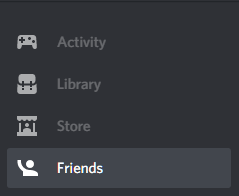
- Now, click on the username of your friend


- Once you click on your friend’s username a DM window will be opened at the top.


- Choose the video call option by clicking on a video recorder icon.
- You can even place the cursor over the username of your friend. It will show the video call option directly.
- Click on the 3 dot icon if you are using an android or iOS phone to start a video call by selecting Start video call from options in the DM or video group.
Related Post: How to delete Discord Account Easily
STEPS: How to screen share on discord.
- First, open a Discord account on your computer or MAC.
- Tap on the room you want to broadcast in.
- If you want to broadcast in a public room, You need to have permission to open the game you want.
- Now, return to Discord.
- Then, Discord will process and discover the applications which you are using, and its icon will appear at the bottom of your screen.
- Click on the stream button now that appears in the right of the application icon.

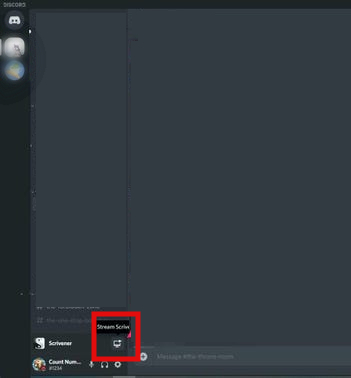
- If there is no application you want to stream in the icon, then select the channel you want to broadcast.

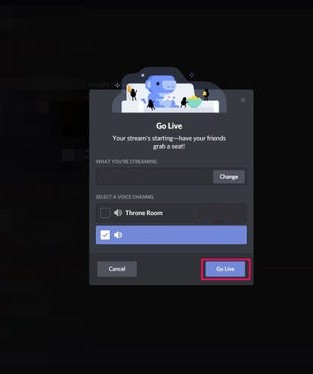
- Now, tap on Change, now you can select from other already open apps or share your screen.
- If you want to share a stream in a private call, then you don’t need to do any extra effort just start the call instead.

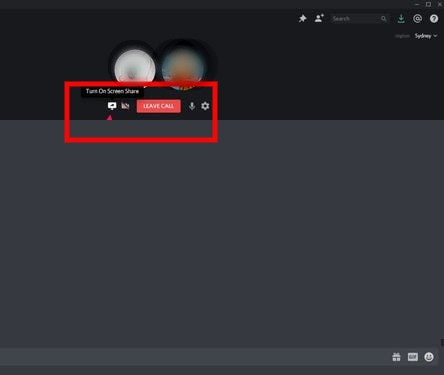
- Once you start the call a Screen sharing option will appear in your call option.
- Now, click on that and select the screen or app you want to broadcast.
Related Post: Where to find the Steam Screenshot folder on different systems
Common Discord screen-sharing problems and fixes
Discord Screen Share Audio Not Working

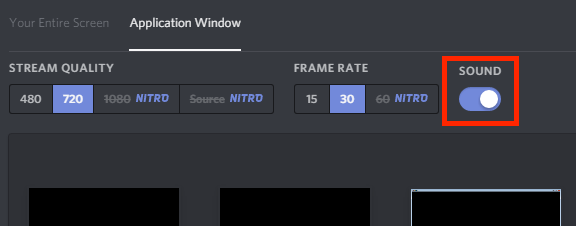
There are various reasons which cause these types of problems may be any one of them would be applicable in your case.
- It may be caused due to the lack of stability in the sound mechanism with screen sharing in its initial stages.
- Discord uses audio drivers already installed on your device like all other audio apps. If there is an issue in the audio drivers or if they are corrupt they can create problems.
- Application or administrative issues.
If your problem is one of those above mention problems, or if you encountering some other problems try these solutions.
Solution of Audio problem while screen sharing in Discord.
1. Restart your computer.
Restart your Pc and check if it works or not.
2. Update discord:
- Update your current version of Discord by pressing the Windows logo key + R.

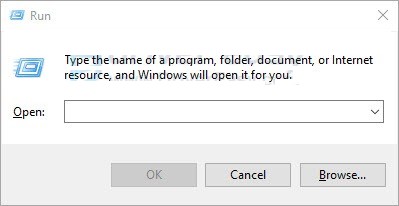
- Type %localappdata% and press ok.
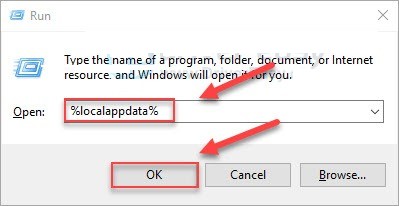
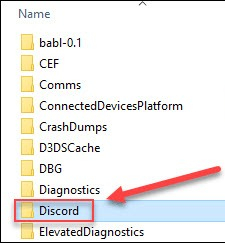
- Double-tap on Discord.

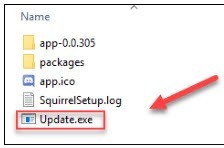
- Tap on update.exe

3. Update your audio driver.
Update your Audio driver, you can update it using Driver easy software.
4. Reset Discord Voice setting.
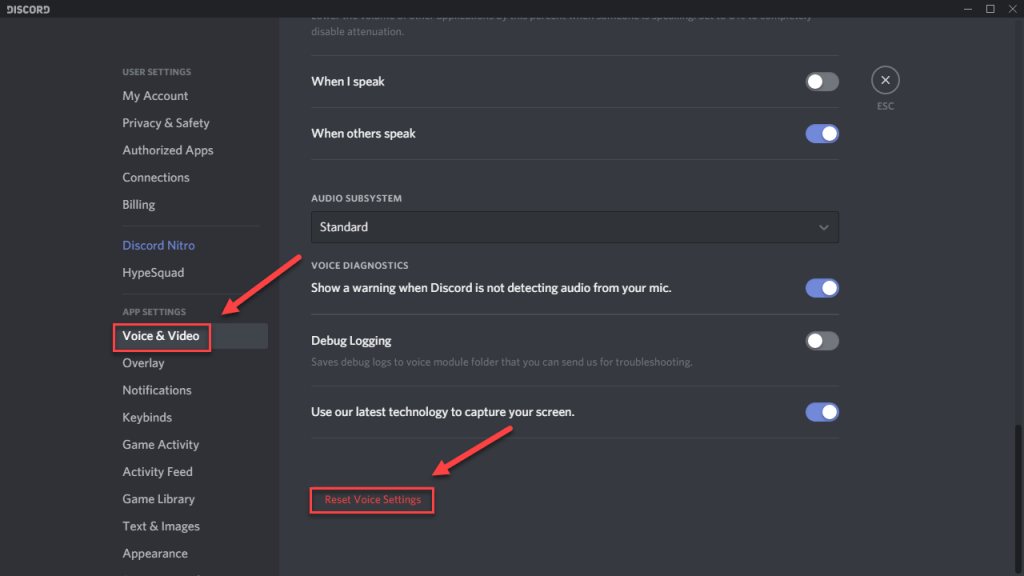
Open Discord and head to settings. Now click on Voice & Video option then tap on the Reset Voice setting.

5. Grant improved access
- Press Windows logo key + E to start File Explorer.
- Head to the folder where you have installed Discord. The default location is Local Disk Cc program files.
- After the install directory opens up tap on the app and clicks Properties.

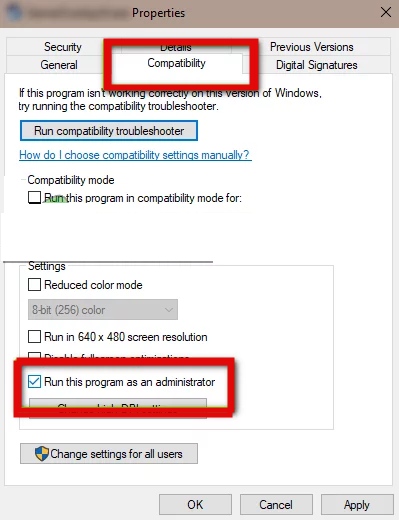
- Now, click on the compatibility tab and tick the option stating Run this program as an administrator.
- Now apply to save changes and exit.
Once you are finished following the above steps, now check whether your problem is solved or not.
Related Posts: How to take a Scrolling Screenshot On Windows
Discord Black Screen When Screen Sharing
If you are facing Discord black screen when screen sharing try these solutions mentioned below to improve broadcasting your screen on the server.
Run with Admin Privileges
Follow these simple steps to run discord as an administrator.
- Tap on the Windows logo key to open the start menu.
- Now, type Discord in the search bar in order to search for the Discord application.
- Tap on the Discord search result, then tap on the Run as administrator.

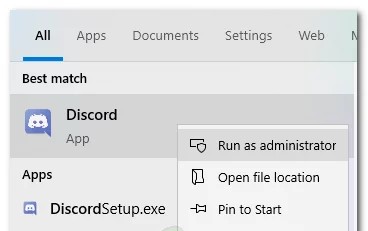
- Now, run the other program with administrator privileges as well by tapping on the program’s .exe file.
- Then from the dropdown menu select Run as administrator.
Update your graphics driver
You can easily update your graphics driver using Driver easily.
- First, download and install the driver easily.
- Now, launch Easy Driver and
- Tap on the Scan Now button, to start scanning your computer to detect any problem in drivers.
- Now, tap on the refresh button to automatically download the correct driver version and install it manually using the free version.
Update Discord
Here’s how to do it:
- Press the Windows logo key + R on the keyboard, to open the boot dialog
- Type %localappdata% and press ok.
- Now double tap on Discord.
- Finally, tap on update.exe
Now check again if your problem with Discord Black screen When screen sharing is solved or not.
Additional steps for the web browser
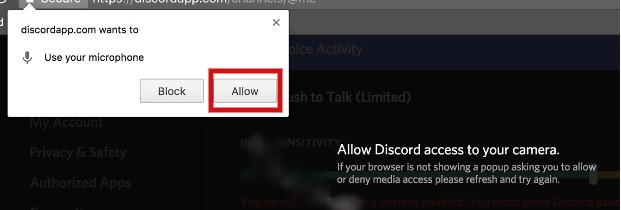
You have to enable camera access from popup windows if you are using Discord on the browser in place of the Discord app.

If you are using Discord browser then click the Allow button to confirm access in the popup window. By doing this Discord gets access to your camera and microphone on your computer to get access.

How to share screen on Discord voice channel
Screen sharing on discord for presentations or discussions is relatively easy for users yet contains various steps. If you are finding an easy way how to screen share on discord, follow the below steps:
1. Join the voice channel by signing in to your discord account.
2. Select the screen option from the bottom line of the channel. Then, it will open another window of various possibilities for sharing.
3. If you want to share the application screen, it will not show your window activities on the screen. This format is highly recommended for business meetings. For casual conversations, desired screen option is best for it. You can change the steam quality in between your lecture.
Related Post: BEST GAMING LAPTOPS UNDER 2000 $: HIGH-END MACHINES
How to Watch a Live Stream on Discord?
Discord screen shares may be seen by joining the live stream of other members of the server. Enter the voice conversation they’re currently participating in and click on their name. There is a Go Live symbol next to their name while they are presently screen sharing. You can speak with the streamer and other viewers via the live stream’s voice channel while you’re watching.
It’s also possible to participate in another person’s live broadcast while simultaneously displaying your own screen. Using the Discord software, you may switch between different Discord windows. Users may cooperate from afar by switching between their own live streams and those of other people, even if they can’t see each other at the same time.
Is Screen Sharing Possible on Discord Mobile?
Definitely, it’s possible to share the screen on discord mobile. Also possible to watch live streams on Discord mobile, but you’ll need to join a screen share. Discord mobile also allows you to make phone and video calls while watching a live stream. Discord screen share on smartphones contains some similar steps to computers. You will get confused with the format if you are new to screen sharing on discord mobile. The below steps apply for existing video calls or for creating a recent video call.
1. Browse the official app and join the voice channel. This option is available on the features bar.
2. Swipe up to get the screen share option. This option can be present on the bottom line or above, depending on the current version on your phone.
3. To access all the features, you should download the latest version of discord for mobile.
4. On clicking video sharing, the notification will pop up on your screen as a sign of warning. The reason is that the app will alarm you for sharing the screen with someone.
5. Once you select allow to other participants, select start now. This button will browse the screen sharing with your friends or colleagues.
Related Post: BEST GAMING MOUSE UNDER 50 $: Step up your Gaming Experience
Best tips on discord screen share
1. Discord is an excellent tool for screen sharing if you are a gamer. It will keep everything in momentum without causing an error.
2. A low software PC could barely control the latest technology of discord. That is why it will show an error while connecting on call. The fixed solution is to disable the newest technology by setting it on discord.
3. Allowing missing permission will not load the screen because you might have disabled it. This feature is suitable to keep your account safe from external sources.
4. On PC mode, a full discord screen can cause a hanging problem. Therefore, keep the screen minimized while having a conversation.
Final words:
I hope now you have an idea of how to screen share on discord and how to eliminate some common problems like no audio while sharing screen and Discord Black Screen When Screen Sharing. Solutions of some common questions like can you screen share with audio on discord and Discord screen share no audio chrome is already provided in Faq section. Still, if you face any problems while broadcasting your screen in the discord server, you can ask your queries and share your experiences in the comment section below,
FAQs
1. Can you screen share with audio on discord
2. Discord screen share no audio chrome
1) Press Ctrl + R2 to update the app and to end the screen-sharing session.
2) Now close and reopen Google chrome and before starting the screen-sharing, start playing audio in the browser.
3) Now, enable and try again.