


You might be familiar with Steam if you are a video game fan. This one of the most popular gaming platforms is growing exponentially due to various reasons. The most important one is it features a wide range of game genres. Whether you are trying to troubleshoot a problem which you are facing while playing games or you just want to capture an extraordinary scene while playing games. Gamers who play online games can realize the importance of capturing a screenshot so that they can use it for various reasons like bragging for rights, or it is used while reporting bugs or to get some information while playing the game. No matter what streaming game are you playing, you can just click on hotkey F12 by default to capture the screenshot while playing games. It also offers you to share your gamings screenshots on social media platforms or upload the screenshot on your steam profile. You may face the problem occasionally of not locating captured images. You have two solutions to get access to these captured images either to get access via the steam screen manager or to get access by storing the hard drive. Now, maybe you ask this, “where are steam screenshots saved?” If, yes then this article is for you it shows you how to find a Steam Screenshot folder either from the client itself or using the file system directly.
How to find Steam Screenshot folder using the Steam client

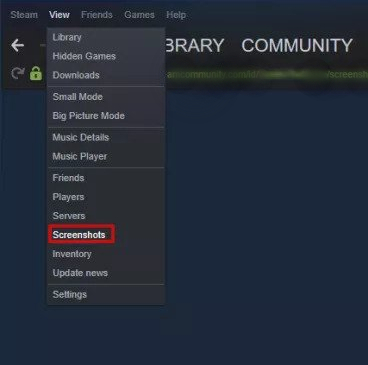
The simplest solution to find the Steam screenshot folder is Through steam itself. Tap on view in the menu bar then, tap on Steam Screenshots appears in the drop-down menu, this will show your Steam screenshots if you have taken any also you have some choices on how to deal with them.
Clicking Show on the disk button will open System File Explorer in the search bar where the system has saved Steam Screenshots. For any reason, if you are not getting access to the Steam client and you need to locate the image stored in the system by any means.
How to find Steam Screenshot folder using your computer’s file system


Let us first discuss the steam installation guide.
The default setting is C: \ Program Files (x86) \ Steam in Windows 10 and Windows 8. When we are talking about Mac OS, the default setting is Users / {username} / Library / Application Support / Steam. In place of username write Mac username, not the Steam username. The default setting is ~ / .local / share / Steam, on Linux. For any reason, if you have installed Steam anywhere else. Just go to the Steam folder where you have installed it. After you found the steam installation guide scroll down and follow the steps below to find the screenshots.
- First head to User data guide.
- You will see either one or many folders with a number in place of names according to the accounts you have set up in the Steam Client. This number is the user ID number.
- Out of the vast majority of cases, there might be only one folder in the vast majority of cases, but it accomplishes a little search and undo to find the folder assigned to your account if you have many users.
- Navigate to the user’s folder no open it and search for the “760” named folder.
- Now open this folder and then open the folder in it “remote”.
- just as every user has an ID, and so does every game.
- If you possess a large library of games, then to click each numbered folder is not be an effective way to find your screenshot.
- The simplest way is to enter the site and find the game you are looking for.
- You can search your game either by game title or by game ID.
- As soon as you know the passcode, go to this folder and open it.
- Now head to the folder named Screen Shots and find your screenshots in this folder.
Change the destination of Steam screenshots folder:
If Steam takes longer to access the current destination folder for any reason, you can change the destination of the Steam screenshots folder where you might store your screenshots. Press Windows key + E to locate the screenshot folder. If it is difficult or time-consuming to find the folder and you want to change the destination Steam screenshot, then follow the given steps below:
- First, delete the remote folder.
- Other way to get access to this folder is by following this pathYou can access this folder by going to this path:
C: \ Program Files (x86) \ Steam \ userdata \ AccountID \ 760


- Once you are finished deleting the default folder open the command prompt, by clicking the search icon on the taskbar and searching command prompt.
- Now press right-click on Command Prompt from Results.
- Now tap on Run as administrator.
- Run the command mentioned below:
mklink / D “C: \ Program Files (x86) \ Steam \ userdata \ AccountID \ 760 \ remote” “XXX”
Replace “XXX” with the path to your required screenshot folder.
Where are Steam screenshots saved on Windows 10?
Whenever you want to take a screenshot you need to press the hotkey F12 key present on your keyboard. After doing this, you will see the screenshot manager on your screen which is the default screenshot capture feature for Steam Game Console. You can also share screenshots without a need to leave the program. You can also save the screenshots in your hard drive or you can share it within the Steam app to Steam community. It also offers you to keep your screenshot private. This is the easiest way to locate where are steam screenshots saved on windows 10.
Here in this article we have discussed about Steam Screenshot folders and where are Steam screenshots saved on Windows 10 and others. If still you face any problem doing this you can connect with us in the comment section below.