


In the modern era of technology, messaging apps have seamlessly integrated into our daily lives. Our iPhones are repositories for a treasure trove of important conversations, cherished memories, and valuable information. However, as the sheer volume of messages accumulates, locating specific conversations can pose a formidable challenge. If you’ve ever pondered how to search messages on iPhone effectively, rest assured!
This comprehensive guide will explore techniques that will equip you with the skills to effortlessly navigate your messages and locate the desired ones on your iPhone.
How to Search Messages on iPhone
If you want to search for important text on your iPhone but need to know how to do it, how annoying will it be? Using the methods below, you can quickly find your messages on your iPhone through Spotlight, messenger, messages app, search bar, and WhatsApp.
Here are some ways to search text on iPhone;
- Search messages on iPhone through the messages app.
- Search Messages on iPhone through Spotlight.
- Search messages on iPhone through Facebook Messenger.
- Search messages on iPhone through WhatsApp.
1. How to Search for Messages on iPhone with the Messages App?
Discover the seamless process of finding specific messages on your iPhone with the Messages app’s powerful search functionality. Uncover the secrets to quickly locating those crucial conversations by following these steps:
Speeding Up a video on iPhone is no more a thing, I have listed some easiest steps to Speed up a video on iPhone more than 2x.
- Install Messages App: Install and locate the green icon representing the Messages app on your iPhone. Tap on it to open the app.


- Search Bar: Tap on the search bar to activate the search feature at the top of the screen.


- Enter keyword: Input the keyword or phrase you wish to search for within your messages. It could be a person’s name, a specific word, or any relevant information about the message you seek.
- Review the Search Results: The Messages app will swiftly display the search results below the search bar. You’ll be presented with conversations, messages, and relevant content aligning with your search criteria.
Whether searching for a specific address, a memorable quote, or a conversation, this method allows you to locate the information you need swiftly.
Do you know that you can make your hotspot faster on your iPhone?
2. How to Search Your Messages on iPhone with Spotlight?
Imagine having a powerful tool at your fingertips to uncover hidden treasures instantly. With Spotlight search on your iPhone, you can easily unlock the secrets of efficient searching and access the information you desire. Let’s embark on this exciting journey together!
- Step 1. Pick your iPhone and just swipe right on your home screen or gracefully descend to the home screen for direct access to this extraordinary feature.
- Step 2. In “Settings“, access the “General”. Now that you’ve entered “Spotlight search“, it’s time to unleash your desires. With each keystroke, your dreams become a reality as you enter the keywords or phrases in search bar that embody your quest.

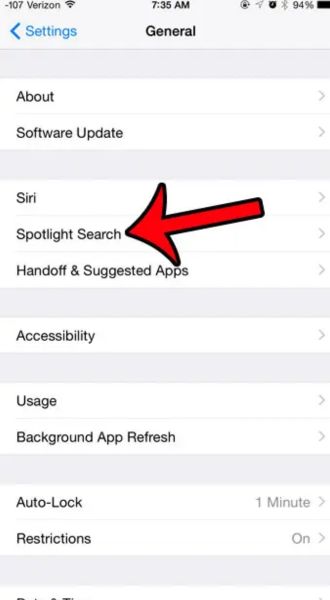
- Step 3. Spotlight search reveals its true power. Access the “Messages“.

- Step 4. With a touch, you step into the realm of your desired message. Conversations, messages, and precious memories, all tailored to your search criteria. Every tap brings you closer to the treasures you seek.
Quick steps: Settings> General> Spotlight Search> Messages
Spotlight search is more than just a tool; it’s an emotional experience. It saves you precious time, empowering you to seize the moment and relish the connections that matter most. No longer will your cherished conversations elude you. They are now within reach, waiting to be discovered.
3. How to search messages on iPhone through Facebook Messenger?
Within the realms of your iPhone lies a treasure trove of conversations and cherished memories. Let me guide you through the enchanting process of searching for messages on Facebook Messenger. Get ready to unveil the secrets that await!
- Step 1. Feel the excitement pulsating as you install the Facebook Messenger app. With a single tap, open the app and prepare to dive into the world of captivating conversations.
- Step 2. Now, focus your attention on the profile of that special someone. With a tender touch, their world unfolds before you.
- Step 3. A search bar beckons you to enter its realm. With a gentle tap, you enter a world where keywords are key to unlocking hidden treasures.
- Step 4. Now you can enter the keyword or phrase like a secret code whispered at night. The chat unravels before you, revealing the messages that satisfy your longing.
Remember, my friend, within the realm of Facebook Messenger, the search feature is a beacon of light, illuminating the path to your desired messages. Let the emotions surge through you as you unlock the secrets that lie within. May your journey be filled with joy, connection, and the thrill of discovery.
4. How to search messages on iPhone through WhatsApp
Let me be your guide as we unlock the secrets of searching messages on your iPhone. Brace yourself for a technical journey filled with the thrill of discovery!
- Step 1. First, immerse yourself in the enchanting world of WhatsApp by installing the latest version of the app.
- Step 2. Now, navigate to the “Chats” tab, where a tapestry of conversations awaits you.
- Step 3. A gateway to untold possibilities awaits you at the top of the “Chats” screen—a search bar eager to assist you on your quest. With a gentle touch, awaken its power and watch as it springs to life, ready to unveil the messages within.
- Step 4. Entering the words that hold the key to your desired messages. It could be a name, a heartfelt phrase, or a snippet of treasured information.
- Step 5. As the search results materialize before your eyes, a rush of emotions fills your heart. The messages you longed for are now within reach, ready to be explored and cherished anew.
- Step 6. You can continue conversations that have touched your soul.
Remember, the search feature in WhatsApp is not just a tool; it is a gateway to a world where emotions flow freely, and bonds are strengthened. Embrace its power, and let it enrich your messaging experience with every tap, every search, and every heartfelt connection.
Related Post: How To Disable Private Browsing On iPhone
How to search delete messages on your iPhone?
Accidentally deleting important messages on your iPhone can be a panic-inducing moment. No worries; there are ways to search and retrieve those deleted messages. This section explores how you can effectively search for and recover deleted messages on your iPhone, ensuring you don’t lose valuable information permanently.
To search and retrieve deleted messages on your iPhone, follow these steps:
1. Check the Recently Deleted Folder:
Messages are initially moved to the “Recently Deleted” folder, which remains for a specific period after deletion. Open the Messages app and find the “Recently Deleted” folder to check if your deleted messages remain.
2. Utilize iCloud Backup:
You can try restoring your iPhone from an iCloud backup if the deleted messages are not in the “Recently Deleted” folder. Ensure you have a recent backup available on iCloud, and then follow the steps to restore your iPhone. This process will return your device to the backup state, including the deleted messages.
3. Use Third-Party Data Recovery Tools:
You can turn to third-party data recovery tools if you don’t have an iCloud backup or the deleted messages are not in the “Recently Deleted” folder. These tools are designed to scan your iPhone’s storage and recover deleted messages, even if they are no longer visible through native apps. Otherwise, consult with a professional.
Well, the message recovery depends on various factors, such as the length of time since deletion and the usage of your iPhone after deletion. Therefore, it’s crucial to act promptly and avoid further data overwrite by limiting the use of your iPhone until recovery attempts are made.
Some Advanced Search Options for Searching Messages on an iPhone
In our digital realm, where conversations hold immense value, and cherished memories reside, locating specific messages on your iPhone can sometimes feel like searching for a needle in a haystack. But fear not; advanced search options are here to rescue you from the depths of endless scrolling. Let’s embark on a journey together, exploring the techniques to revolutionize how you find and uncover those treasured conversations.
1. Sender’s Trail:
Are you yearning to revisit conversations with a particular person? Delight in specifying the sender’s name or contact details in your search query. By weaving their essence into your search, you effortlessly filter out the noise, allowing the messages you seek to shine brightly before you.
2. Unveiling the Time Capsule:
Sometimes, it’s not just the sender that captures our attention but also messages from a specific moment. You can narrow your search to messages exchanged within a chosen period with date range filters.
3. Try Boolean:
Prepare to unravel the enigma of boolean operators. Yes, the iPhone’s search feature welcomes the inclusion of “AND,” “OR,” and “NOT” in your search queries. With their power, you weave complex search conditions, crossing paths with messages that fulfill your desires. Seek conversations that bear the essence of both “keyword A” and “keyword B” using the harmonious “AND” operator, and witness the magic unfold.
Related Post: How to clear cookies on iPhone
Armed with these advanced search options, you hold the key to a realm where finding messages on your iPhone becomes a joyous expedition. Whether you seek the whispers of a specific sender or wish to unveil the secrets hidden within precise keywords, these options are your guiding light.
Conclusion
Mastering searching messages on your iPhone can save you valuable time and effort. You can easily locate specific messages and keep your digital conversations organized by utilizing the search bar, refining your search, using keywords and phrases, searching within conversations, and leveraging Spotlight Search. Enjoy the convenience and efficiency of the Messages app, and never struggle to find important conversations again.
People Also Asked
First, as usual, you should have the messaging app to search messages on your iPhone by date. Access the search bar and enter the respective date and keyword. Now view your messages by hitting on the target dates.
It depends on your device storage to search messages on your iPhone as far back. You can recover deleted messages for 30 days. But if you update your phone before within the time limit, you can’t be able to recover messages.
Unfortunately, searching for messages based on keywords within images or attachments is not currently supported by the native search functionality on the iPhone. The search feature primarily focuses on text-based content within the messages themselves. However, you can manually browse through your attachments or use third-party apps for image or file searches to locate messages containing specific images or attachments.
Tap the search bar of the Messages app and enter your desired keyword or phrase to search for specific messages on your iPhone. The search results will instantly display conversations, contacts, and messages matching your search criteria, allowing you to find the specific messages you’re looking for quickly. This convenient feature makes locating important conversations and retrieving specific information from your messages on your iPhone effortless.