


Any browser you use needs an update as it is important to protect your browsing from any damage or threat. Google chrome is undoubted the best searching engine in the current times. If you use Google Chrome frequently, then you must upgrade your Google Chrome version, but first, you have to check which version of Google Chrome you are using currently. Here in this article, you will know how to check Chrome Version in just a few steps.
How to Check Chrome version (Windows or Mac)
If you are using Chrome on your Pc, laptop, or MacBook, just follow these easy steps to know how to check Chrome version and how to update the Chrome version.
- Open Google Chrome on Windows or Mac.
- You will see three dots in the right-upper corner of the window.
- Click on those three dots icon.
- A list of the menu will dropdown.
- Hover over “Help” on that menu.


- Now, click “About Google Chrome.”


- The version of Google Chrome you are using will appear in the following window.


If you are using multiple Gmail accounts and facing issues, here is your ultimate guide How to change Default Google Account.
How to Update Google Chrome (Windows and Mac)
Once you found what version you are using, now you can update it to the newest one. However, Chrome will automatically give you a notification if an update is needed. Since a newer version is available, your choice is whether or not to install it. Obviously, the newest version of any product is the most updated one. You can enhance your browsing experience and make your browsing safe and secure from any kind of bugs or security issues by updating the old version.
You can also choose to automatically update the browser by selecting “Automatically update Chrome for all users,” which will require you to enter your computer password for setup. If you want to update it manually, just follow these easy steps to know how to update Google chrome on pc or Macbook
- Head to chrome on your Pc or MacBook
- Click on the three dots icon
- Hover over Help, then click on About Google Chrome.
- Or you can also type,
chrome://settings/helpin the location box of the chrome.


- If the icon appears colored it means the update is pending depending on how many days the update has been available.
- Green means update is 2 days old.
- Orange means update is 4 days old.
- Red means update is a week old.
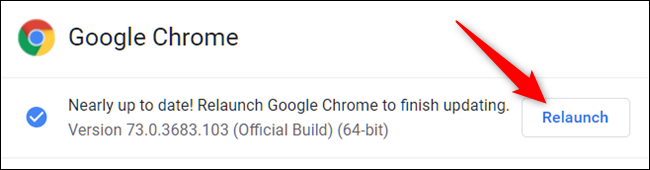
- If the update is pending click on these three dots.


- Now, Click Relaunch.

Do you know, you can use your Gmail Account without phone number? This guided will show you How to create a Gmail account without Phone Number.
How to Check Chrome Version (iPhone and iPad)
If you are using an iPhone or iPad device, there is a very easy way you can check Chrome version on your Apple iPhone and iPad as well. You have to do the following:
- Open the Google app on your iPhone or iPad.
- Tap the three dots in the top right corner of the screen.


- Then tap the “Settings” option.

- Go down to the bottom, and click on Google Chrome.

- The screen will show you which version you are using.


How to Update Google Chrome (iPhone and iPad)
The apps on iPhone and iPad are updated automatically but if someone has selected them to be updated manually, you can update them easily. All you have to do is follow these steps:
- Open your app store.
- Search Google Chrome on the search bar and click enter.
- You will have two options. Either to uninstall or update Google.
- By clicking Update, you can update Chrome.
How to Update Chrome Version on Android
Android devices automatically update the Chrome Version. However, if you are an Android user and want to update it manually, you have to follow these below-mentioned steps to know How to update Chrome version on android:
- Open the Play Store app on your android device
- At the top left tap on the menu bar
- Locate Chrome Under updates Section
- Tap on the update, appear next to chrome
Do you know you can Use Google Lens to copy and paste Handwritten text ?
Final Words
Therefore, after reading this article, you know how to check Chrome version and how to update it. Using the updated version is important to keep browsing safe. But most people don’t update due to storage issues and browse security breaches. If you have any query related to this, share with us in the comment section below.