


Step into a realm where your presentations transcend the ordinary, where the enchantment of music intertwines with your words and visuals. With Google Slides, the magic of adding music comes alive. Adding music to your Google Slides presentation goes far beyond mere entertainment. Music has the extraordinary ability to heighten the impact of your message, build suspense, or ignite passion. But how to add music to Google Slides?
Imagine captivating your audience, evoking emotions that linger long after your presentation ends. In this guide, we’ll unveil the secrets of seamlessly integrating music into your Google Slides presentation with different methods. Let’s embark on this transformative voyage together, unlocking the power of music to leave a lasting impact on your audience.
How to add music to Google Slides- Methods
When it comes to adding music to your Google Slides presentation, the possibilities are endless. By incorporating background music or sound effects, you can create a more immersive and engaging experience for your audience. Explore the methods with us!
- Add music to Google Slides from the computer
- Add music from Spotify
- Add music from Youtube or Google Drive
- Third-party add-ons
Related Post: How to Flip and Rotate an image in Google Docs
Method 1. Add music to Google Slides from a computer
Adding music to your Google Slides presentation from your computer is a straightforward process that can bring your slides to life. Here is the step-by-step process to add music to Google Slides directly from your computer.
- Step 1. Start by opening the Google Slides presentation if you want to add music. If you haven’t created one yet, go to Google Drive, click on “New,” and select “Google Slides” to create a new presentation.


- Step 2. Go to the slide in your presentation where you want to insert the music.


- Step 3. In the menu options at the top of the screen, click on “Insert.” A drop-down menu will appear with various options.
- Step 4. From the “Insert” drop-down menu, select “Audio.” A sub-menu will appear with additional audio options.

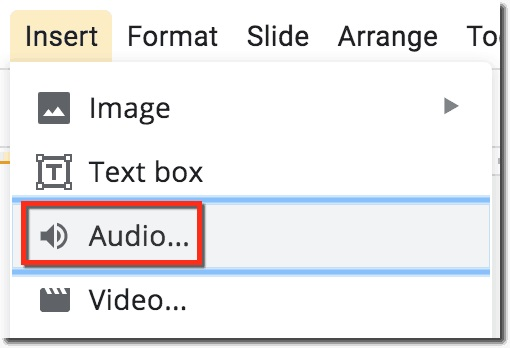
- Step 5. In the “Audio” sub-menu, choose the “Upload from Computer” option or insert from the “My Drive” This will prompt you to browse your computer files to locate the audio file you want to add.
- Step 6. Click on the “Choose a file from your device” button. Once you’ve selected the file, click “Open” to begin the upload process.
- Step 7. After the audio file is uploaded, you can adjust audio settings to customize how the music plays in your presentation.
By following these steps, you can enhance your presentation’s impact by incorporating the perfect soundtrack that aligns with your message and engages your audience.
Related Post: How to create a Gmail account without a Phone Number
Method 2. How to add music to Google Slides from Spotify
If you have a preferred music playlist on Spotify that perfectly matches your presentation, you’ll be delighted to know that you can easily add music to Google Slides directly from Spotify. Let’s explore the steps!
- Step 1. Start by opening the Spotify application or website. If you don’t already have a playlist for your presentation, create one by clicking on the “New Playlist” button.


- Step 2. Once you have created your playlist on Spotify, right-click on the playlist and select the “Copy Playlist Link” option.
- Step 3. Open your Google Slides presentation or create a new one. Navigate to the slide where you want to insert the Spotify music.
- Step 4. In the menu options at the top, click “Insert” to access the available insertion options.
- Step 5. Choose “Audio“: From the “Insert” drop-down menu, select “Audio.” A sub-menu will appear with additional audio options.
- Step 6. In the audio options sub-menu, select “By URL.” This will prompt you to enter the audio file URL you want to add.
- Step 7. Right-click on the URL field and select “Paste” to insert the Spotify playlist link that you copied earlier. Click “Apply” or “Insert” to continue.
- Step 8. Preview and Adjust the music in Google Slides.
Remember to test the audio playback during your practice runs to ensure that the Spotify tracks play smoothly without any issues. With the power of music, your Google Slides presentation will captivate your audience and leave a lasting impression.
If you are using multiple Gmail accounts and facing issues, here is your ultimate guide on How to change your Default Google Account.
Method 3. Add Music from youtube or Google Drive
Imagine the power of seamlessly incorporating audio from Google Drive or YouTube into your Google Slides presentation. The right music can transport your audience to another world, evoke deep emotions, and captivate their senses. Get ready to embark on a journey where every slide is accompanied by enchanting melodies, enhancing the impact of your message.
- Step 1. Begin by selecting a track from your Google Drive or finding a captivating piece on YouTube.
- Step 2. Open your Google Slides presentation, head over to the slide where you want to add the audio, and ensure you’re in editing mode.
- Step 3. Go to the menu and select “Insert.” From the dropdown menu, choose “Audio.” In the sidebar that appears, click on “Google Drive” or “YouTube” depending on the source of your chosen audio.
- Step 4. If your audio is on Google Drive, navigate to the file and select it. Google Slides will import the audio and place it on your slide.
- Step 5. If your desired audio is on YouTube, click on the YouTube option in the sidebar. Search for the video or paste its URL into the search bar. Once you find the right video, click on it to import it into your slide.
- Step 6. Preview the slide with the imported audio to ensure it aligns perfectly with your content. Adjust the volume, timing, and other settings to create a seamless integration between your visuals and the accompanying music. Practice your presentation, allowing the music to guide your rhythm and delivery.
With the ability to import audio from Google Drive or YouTube, you have a treasure trove of melodies at your fingertips. Let each slide resonate with the power of music, creating an emotional symphony that elevates your presentation to new heights.
Method 4: Add music using Third-Party Add-ons
Another powerful way to enhance your slides with captivating melodies is by utilizing third-party add-ons. These add-ons bring a wealth of music options right to your fingertips, allowing you to curate a symphony that perfectly complements your message.
- Step 1. Begin by exploring the Google Workspace Marketplace for add-ons specifically designed for Google Slides.
- Step 2. Choose a reputable and highly rated add-on that suits your needs such as “Audio Player”,
- Step 3. Once installed, open your Google Slides presentation. Locate the newly added add-on in the menu or sidebar. Click on it to open the add-on interface and explore its features.
- Step 4. Many add-ons offer access to vast music libraries. Listen to previews to ensure they align with your desired emotions and message.
- Step 5. Select the slide where you want to add music and utilize the add-on features to integrate the chosen track.
By harnessing the power of third-party add-ons, you unlock a world of music that enhances every aspect of your Google Slides presentation. Remember to select an add-on from trusted developers and explore user reviews to ensure a smooth and reliable experience.
Also Read: How To Strikethrough in GOOGLE Docs
Copyright Precautions for using music to Google slides
The above methods are on how to add music to Google Slides but when adding music to your Google Slides presentation, it’s essential to respect copyright laws. Here are some copyright precautions:
- Before using the music, check for the terms because some websites may have specific conditions or restrictions on their music.
- Use reputable sources or platforms that provide music specifically for multimedia presentations. These sources often offer music libraries with tracks that are cleared for use in presentations, ensuring that you stay within legal boundaries.
- Always pick nonexclusive music that will save you from copyright issues
- Seek legal advice and consult with professionals if you’re unsure about the copyright status of a particular piece of music. They can guide you on whether you can use the music or assist in obtaining the necessary permissions or licenses.
- Consider creating your own original music or working with composers who can create custom tracks for your presentation. This way, you can have unique and copyright-free music that adds a personal touch to your slides.
Remember, respecting copyright laws is crucial to avoid legal issues and protect the rights of music creators. By taking these copyright precautions, you can confidently select and use music in your Google Slides presentation without infringing on anyone’s intellectual property rights.
Conclusion
By incorporating music into your Google Slides presentations, you can elevate the overall impact and engagement of your content. With the step-by-step instructions provided in this article on how to add music to Google Slides, along with useful tips and FAQs, you now have the knowledge to add music seamlessly to your presentations.
Remember to select the right audio files, adjust the settings, and consider the timing and relevance of audio cues. Get creative, captivate your audience, and make your Google Slides presentations unforgettable with the power of music.
Frequently asked questions
Select “Google Slides” and click on the audio icon to access the audio settings. When you’re ready to deliver your presentation, click on the “Present” button at the top-right corner of the screen. If the audio is set to autoplay, it should start playing automatically. Otherwise, click on the audio icon to begin playback.
1. Hit on the audio icon and adjust the volume.
2. Enable the autoplay and specify if you want to play the music once.
3. Specify the time of audio in Google Slides.
4. Preview the settings and wind up the adjustment.
To remove or replace audio, select the audio icon on the slide, right-click, and choose the desired option from the menu.
Yes, adding audio can increase the file size of your presentation. Be mindful of the file size limit when including audio files, especially if you plan to share the presentation online.